3D Hull Data
Hull > Export > 3D Hull Data

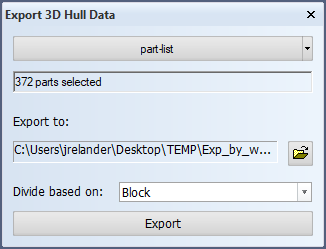
Export the selected 3D construction parts to IGES, SAT, STEP, or XML format. Part selection can be done either by report generator or Hull Viewer selection.
Construction can be exported separately for each work breakdown (WBD) level in all the formats except 3D XML. Select the desired WBD level from the Divide based on drop-down menu. The default selection is Block, which will result in one export file containing all selected parts. When a WBD level other than the block level is selected, the system sorts the selected parts based on the WBD level names, and generates a separate output file for each WBD level.
-
IGES, SAT, STEP – Exporting to IGES, SAT or STEP is based on BREP files (Boundary REPresentation). BREP files contain the geometrical data of the parts.
Note: BREP files are created by the Hull Server, and BREP must be added to the Hull Server output format list in System Management > Extra > Hull Server > 3D-Models > Settings >Output Format for the export to succeed.
It is possible that the BREP files are not generated automatically after changing the system management setting. In this case, the contents in the 3dparts folder within the block should be removed, and then the models recreated. -
Extended Step – Outputs a STEP file and an XML file. The XML file contains layer information from the STEP file combined with the desired logistical data of the parts. Users should create a step_xml.cfg configuration file to define what logistical data to include in the XML file. The file must be placed in the root of the project's norms folder %ncgnorms%. Refer to the example below for the syntax and contents of the file.
 Show/hide example
step_xml.cfg configuration file Result in the output XML file 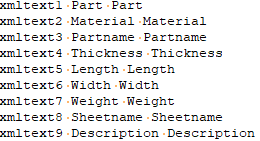
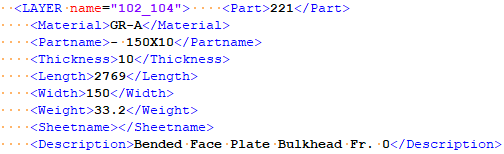
Syntax of step_xml.cfg:
xmltext<x> <tag name in XML> <logistical database field><x>is a number (higher numbers than 9 are allowed)Note: This export option requires a separate Hull Extended STEP and XML export license.
-
3D XML – Export 3D geometric part data to an XML file. This export option requires a separate Hull Export to 3D XML license.
The WBD level selection in Divide based on is not available for this export format.
The following properties are included in the export: part type, key numbers, logistics, and geometric properties.
Show/hide property details
Type, one of PLATE, BRACKET, SHELLFRAME, SHELLPLATE, PROFILE, PILLAR, BENT PROFILE, BENT PILLAR, FACEPLATE, BENT FACEPLATE, LUG Key numbers <number> Logistics Work breakdown data, Assemblyorder, Processcode Geometric properties Weight, Thickness, COG, Length, Width, Area Note: Exporting to XML is based on 3D Dump (3DD) files, and 3D Dump must be added to the Hull Server output format list in System Management > Extra > Hull Server > 3D-Models > Settings >Output Format for the export to succeed.
Note: The content of the 3D Dump files, and therefore the 3D XML export, is affected by the settings made in System Management > Projects > Outfitting > Hull Structure >Detailed Profile Models, where you can select the profile types for which detailed models are created.
Do the following:
- Select the construction parts from the drop-down menu at the top of the dialog.
- Click
 and specify the output file name and the export type (Iges, Acis, Step, Extended Step, 3D XML).
 - Click Export to start the export process.
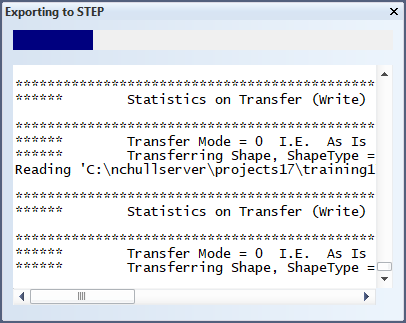
Note: Especially the STEP format files can become huge if you select many parts. Exporting an entire block to a STEP file requires a lot of memory, and that might be a problem. If the export fails, you can try to split the parts into more than one export.
See also Settings.