DXF/DWG
Import drawings saved in DXF and DWG formats, and convert them to MOD files (Hull drawings). DXF/DWG import enables data exchange between other CAD systems and CADMATIC Hull.
See also DXF / DWG integration.
Import folder
By default files are imported from the active block's folder: \[projects_folder]\[project]\[block_number]. You can set the default import folder in the System Management application, Import/Export > DXF/DWG > Settings. You can also select the import folder manually case by case.
Importing drawings
DXF and DWG files in the import folder are shown on the left side of the dialog (1).
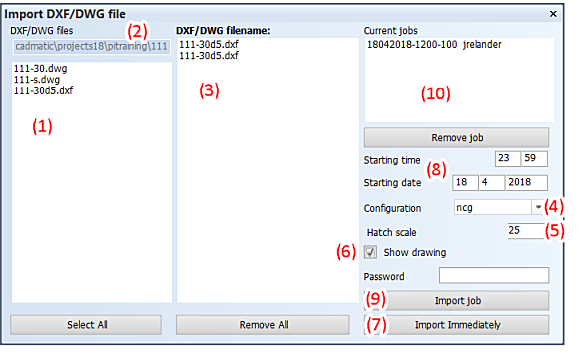
Do the following:
-
If you want to change the folder to import from, type in the path in the field above the file list (2), and press Enter.
-
Select a drawing name on the list by clicking on it. The selected drawings are moved to the right (3), and will be imported. If you do not want to import a selected drawing, you can move it back to the list on the left by clicking on it.
-
From the Configuration drop-down menu (4), select the configuration to use. You can add or delete the configurations available here in the System Management application, Import/Export > DXF/DWG > Configurations.
-
In the Hatch scale field (5), enter the scale factor to apply to hatches.
-
If you want each drawing to be briefly shown in the graphical window when the exports are generated, select Show drawing (6).
-
Run the import immediately by clicking Import Immediately (7).
Scheduling import jobs
You can schedule import jobs to a later time and date:
-
Select the files to import.
-
Enter the time and date for running the import job (8).
-
Select the configuration, and enter the Hatch scale.
-
Enter your Windows login password.
-
Click Import job (9).
The job now shows up in the Current jobs field (10). A job name consists of the date and time for running the job, a follow-up number, and the user name of the job creator.
Jobs are not removed automatically. To remove a job, select a job, and click Remove job.
- The converted files are placed as drawings in \[projects_folder]\[project_name]\[block_number]\2d\overig.
- The converted files are shown in the Drawing > Open dialog, in the Other view group, and can be opened from there.