Viewing profile sketches
To view the generated profile sketches, robot files and DXF files, select Production > Production > Production Information in the 3D-Contek application.
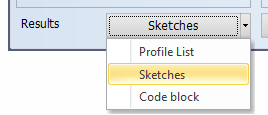
In Results, select Sketches.
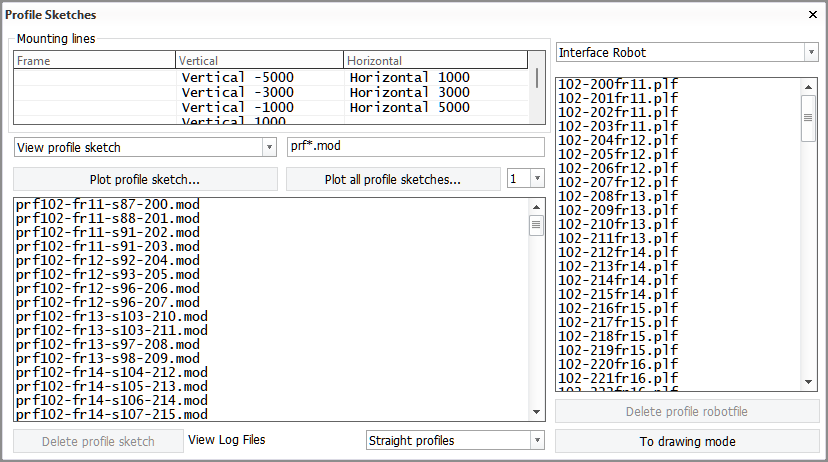
Mounting Lines
Shows the status of the mounting lines. See Mounting lines. Note that mounting lines can be out of date because they may have been changed after the creation of the list.
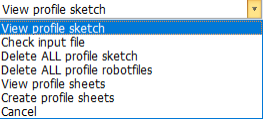
View profile sketch and other functions
View a profile sketch, or select from the other available functions. The profile sketch is displayed in the graphical window.
You can use wildcards to filter the list (press Enter to apply).

Delete profile sketch
Delete selected profile sketches.
View robot files and DXF files
View robot files and DXF files. Select from the drop-down menu which type of files to show:
-
Interface Robot – Show robot files.
-
Interface to DXF – Show DXF files.
 Show/hide image
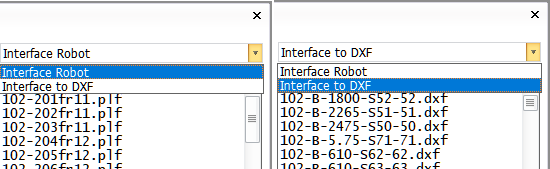
Robot files (left) and DXF files (right) shown in Sketch results
You can delete the selected file by clicking Delete profile robotfile.
Show/hide image
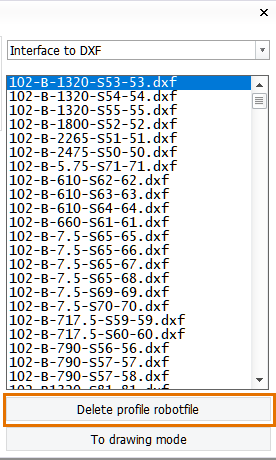
Robot files (left) and DXF files (right) shown in Sketch results
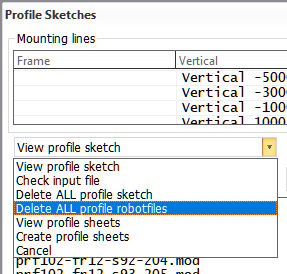
Note that you can delete only one file at a time with the Delete profile robotfile function. You can delete all robot files by using the Delete ALL profile robotfiles function.
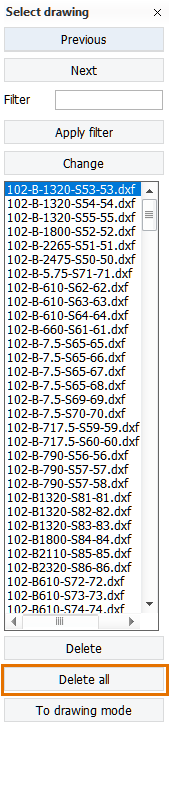
To delete all DXF files, go to Production > Modify Coded, and select Delete all.
Plot
Plot the selected profile sketch or all profile sketches.
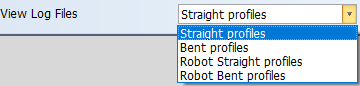
View Log Files
Select for which type of items log files are shown.
To drawing mode
Make modifications and add extra information to a profile sketch. Normal drawing functions can be used. After modifying the profile sketch, click Save. You can then select another sketch to modify.
Note: Manual changes are overwritten if the sketch is calculated again.
Note: The drawing in the graphical window is not presented at a real scale, but fit to screen.