Configuring Plant Modeller Service Instance
After the export configuration for 3D models is available, you can configure Plant Modeller Service Instance to run the configuration automatically at fixed times. You can also set Plant Modeller Service Instance to look for new documents and/or publications during each area update, to synchronize the changes with eShare automatically.
Configuring Plant Modeller Service Instance to handle the 3D model
Do the following:
-
In the Cadmatic desktop, browse to your project workspace.
-
Select Object > Manage Plant Modeller Services & Instances. The Select Plant Modeller Service dialog opens.
-
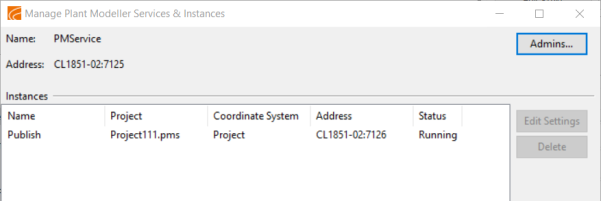
Select the service, and click OK. The Manage Plant Modeller Services & Instances dialog opens.
-
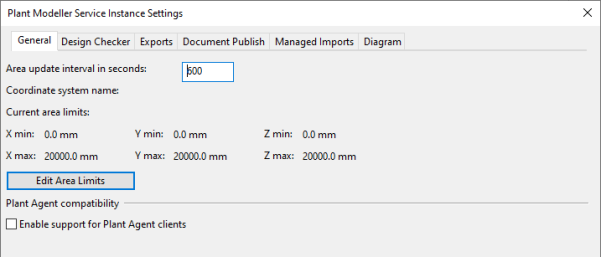
Select the service instance, and click Edit Settings. Alternatively, double-click the service instance. The Plant Modeller Service Instance Settings dialog opens.
-
Select the Exports tab.
-
In the Scheduled exports pane, right-click and select New eBrowser Export to eShare.
-
Select the 3D model publishing configuration you created before, and click OK. A dialog for setting the export interval opens.
-
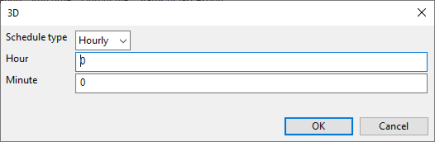
Select to run the export hourly or daily, and set the time. Then click OK. The setting is shown in the Scheduled exports pane. You can test the configuration by right-clicking the export task, and selecting Export Now. If the configuration has been correctly defined, the 3D model is exported and can be opened in eShare.
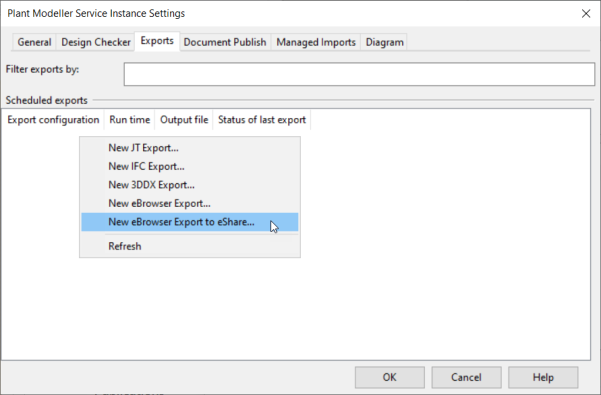
The Select Export Configuration dialog opens.
Configuring Plant Modeller Service Instance to handle document publications
Do the following:
-
In the Cadmatic desktop, browse to your project workspace.
-
Select Object > Manage Plant Modeller Services & Instances. The Select Plant Modeller Service dialog opens.
-
Select the desired service, and click OK. The Manage Plant Modeller Services & Instances dialog opens.
-
Select the service instance, and click Edit Settings. Alternatively, double-click the service instance. The Plant Modeller Service Instance Settings dialog opens.
-
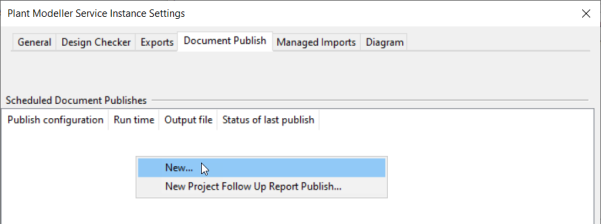
Select the Document Publish tab.
-
Right-click, and select New.
-
In the Publish Configuration field, enter a name for the configuration. Then click OK.
The instance is now set to look for new documents and/or publications during each area update, and to synchronize the changes with eShare.