Reviewing logs
If you are experiencing problems with the license server, it is recommended that you review the various logs provided by the license server application and the operating system, as logs might contain information that helps you to locate the cause of the problems.
Application logs
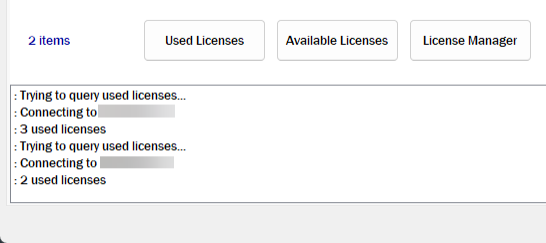
The message pane of License Management Console displays information about actions being performed. Observe the pane to see whether the application can communicate with the specified license server or whether a problem is reported.
Additionally, we recommend that you enable client connection logging and error logging as described in Configuring logging. After enabling logging, logs can be located as follows:
-
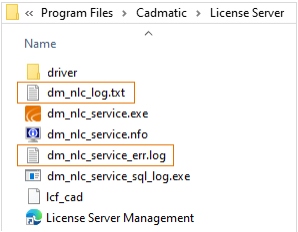
Text-based client connection logs are stored in the file dm_nlc_log.txt in the license server installation folder.
-
Error logs are stored in the file dm_nlc_service_err.log in the license server installation folder. Note that this file collects individual error log files stored in the Windows\Temp folder; if dm_nlc_service_err.log is not available, see if there are any .nlc files in the Temp folder (file name example: cadm12056_12.nlc).
-
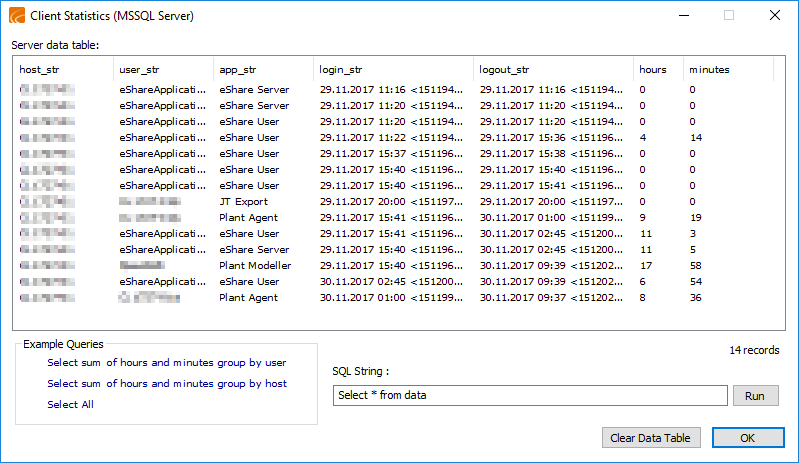
Microsoft SQL Server based client connection logs are stored in the specified SQL database. You can review the logs by clicking History on the tools tab of License Management Console (see example log below) or by using tools provided by the database vendor.
Operating system logs
You can use the Event Viewer application of Microsoft Windows to view event logs that relate to the operation of the CADMATIC License Server service. The license server related events can be browsed in the view Windows Logs > Application.