Computed attributes

On the Component Modeller tab, in the Component model group, the Computed attributes menu includes tools for managing computed attributes.
Computed attributes
You can use computed attributes to calculate the properties of the component model with expressions that may include numerical values, parameters, and variables.
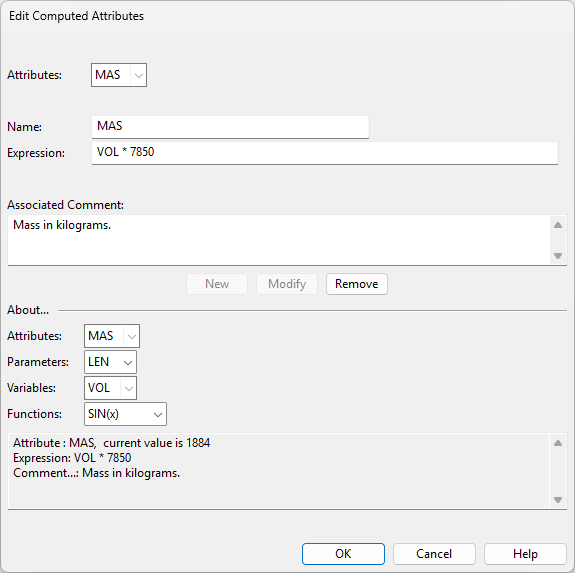
Selecting Component Modeller tab > Component model group > Computed attributes > Computed attributes opens the Edit Computed Attributes dialog, where you can do the following.

-
Define/select the attribute:
- Attributes – Select the attribute to modify or remove. You can also select an existing attribute to use it as a template for a new one.
- Name – Define the name of the attribute you are adding or modifying.
- Expression – Define the expression that calculates the attribute value. You can use parameters, variables, and functions in the expression, but you cannot refer to another computed attribute. Clicking New or Modify evaluates the expression, and if the evaluation fails, an error message is displayed.
- Associated Comment – Describe the purpose of the attribute.
-
Add, modify, or remove the defined/selected attribute:
-
New – Select this to create a new attribute with the currently defined name, expression, and comment.
-
Modify – Select this to apply changes you have made to the name, expression, or comment of the selected attribute.
-
Remove – Select this to delete the selected attribute.
Note: Adding, modifying, or removing attributes only becomes permanent after you close the dialog by clicking OK.
-
-
Use the information in the About section as a reference, for example, to copy an expression from another attribute:
- Attributes – Select an attribute from the list to view its current value and expression.
- Parameters – Select a parameter from the list to view its current value and comment.
- Variables – Select a variable from the list to view its current value and expression.
- Functions – Select a (built-in) function from the list to view its description.
Mass, Operational mass, Maximum mass
You can define mass, operational mass, and maximum mass, as well as the center of gravity (CoG) per type of mass, for the component model. They are saved as computed attributes, which you can also edit with the Computed attributes tool.
Note: We do not recommend defining mass and center of gravity in both computed attributes and COS Attributes.
-
Mass – Selecting Component Modeller tab > Component model group > Computed attributes > Mass opens the Edit Mass and Center of Gravity dialog, where you can define the base mass and center of gravity for the component model you are editing. Mass is stored in a computed attribute named MASS and the center of gravity coordinates are stored in COGX, COGY, and COGZ.
Note: If an attribute whose name starts with MAS already exists, then it is used instead.
If the attributes CGX, CGY, and CGZ already exist, then the center of gravity coordinates use them instead. -
Operational mass – Selecting Component Modeller tab > Component model group > Computed attributes > Operational mass opens the Edit Mass and Center of Gravity dialog, where you can define the operational mass and the related center of gravity for the component model you are editing. Operational mass is stored in a computed attribute named OPERATIONAL_MASS and the related center of gravity coordinates are stored in OPERATIONAL_COGX, OPERATIONAL_COGY, and OPERATIONAL_COGZ.
-
Maximum mass – Selecting Component Modeller tab > Component model group > Computed attributes > Maximum mass opens the Edit Mass and Center of Gravity dialog, where you can define the maximum mass and the related center of gravity for the component model you are editing. Maximum mass is stored in a computed attribute named MAXIMUM_MASS and the related center of gravity coordinates are stored in MAXIMUM_COGX, MAXIMUM_COGY, and MAXIMUM_COGZ.
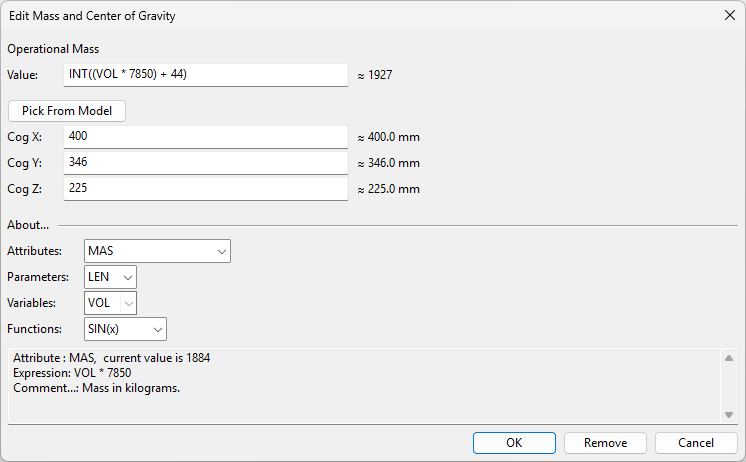
In the Edit Mass and Center of Gravity dialog of each type of mass, you can do the following:
-
Define the expression:
-
Value – Define the expression that calculates the mass value. You can use parameters, variables, and functions in the expression, but you cannot refer to another computed attribute. The dialog displays the calculated value or an error message if the evaluation fails.
-
-
Define the center of gravity for the specified type of mass:
-
Cog X, Cog Y, Cog Z – Click Pick From Model or enter the values manually. The dialog displays the calculated value or an error message if the evaluation fails.
-
-
Use the information in the About section as a reference, for example, to copy an expression from another attribute:
- Attributes – Select an attribute from the list to view its current value and expression.
- Parameters – Select a parameter from the list to view its current value and comment.
- Variables – Select a variable from the list to view its current value and expression.
- Functions – Select a (built-in) function from the list to view its description.
Computed attribute example
In this example, we create a Box type primitive whose dimensions are parametrized, volume is calculated with a variable, mass is calculated from the volume with a computed attribute, and operational mass is calculated from the base mass with another computed attribute.
Do the following:
-
Select Component Modeller tab > Show group > Panes > Parameters Pane.
-
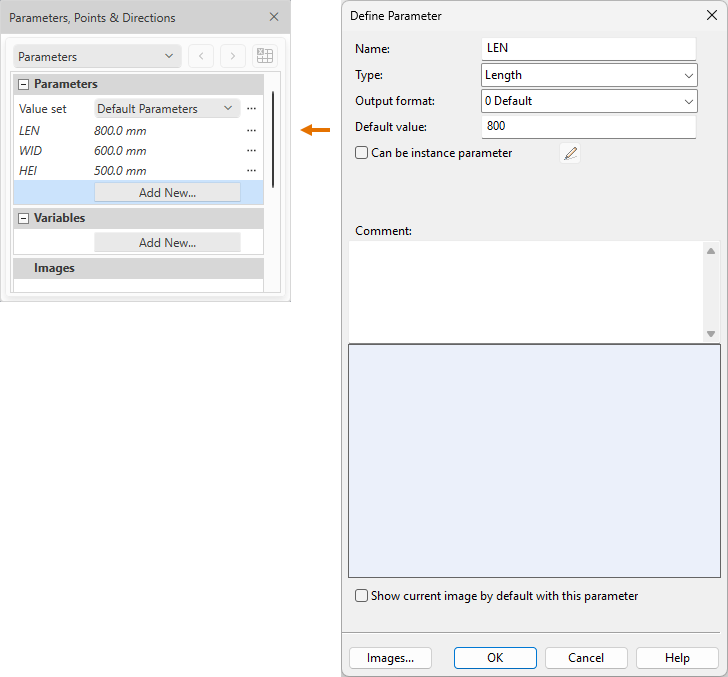
In the Parameters, Points & Directions pane, select Parameters > Add New, and create three Length-type parameters: 'LEN' (length), 'WID' (width), and 'HEI' (height). Set each parameter to a millimeter value of your choice.
-
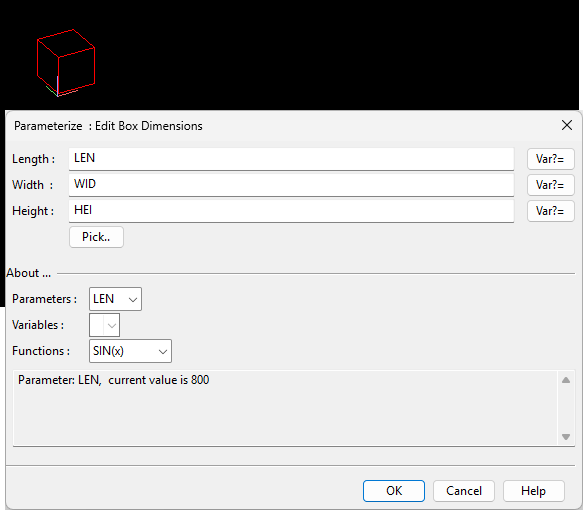
Select Insert tab > Primitive group > Box, and create a box-shaped primitive using 'LEN', 'WID', and 'HEI' as its dimensions.
-
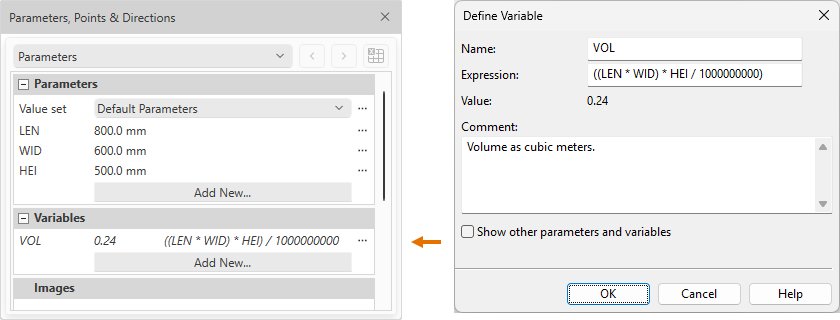
In the Parameters, Points & Directions pane, select Variables > Add New, and create a variable named 'VOL' that calculates the volume of the box in cubic meters. In the expression, multiply the box dimensions together and divide the result by 1000000000 to convert from cubic millimeters to cubic meters.
-
Select Component Modeller tab > Component model group > Computed attributes > Computed attributes and create a computed attribute named 'MAS' that calculates mass in kilograms using the expression VOL * 7850. This expression multiplies the 'VOL' variable by the density of the material. The unit of density is expressed as kg/m3 for the steel S235J2G3.
Note the following:
-
Component Modeller does not compute mass properties automatically because usually you only model the exterior of the component, and not the interior. However, for the GDL content of Plant Modeller plate objects, Component Modeller automatically computes both area properties and mass properties.
-
When you enter expressions that deal with length quantities, keep in mind that the internal units are always millimeters. The internal unit for mass quantity is kilograms. The internal values of parameters that store length quantity are in millimeters. So, if you have parameters defined to be of quantity type Length, then in expressions where you compute mass using the formula MAS = Volume*Density, you have to ensure that the internal value of volume is expressed in correct units regarding the density value.
-
-
Select Component Modeller tab > Component model group > Computed attributes > Operational mass and define operational mass using the expression INT((VOL * 7850) + 44). This expression adds 44 kg to the calculated base mass and rounds the result with the INT function. Define the center of gravity values manually or by picking a point from the model.