Properties
On the Component Modeller tab, the Properties group includes the following tools.
Role markings

Mark temporary | Mark service space | Remove markings
Mark temporary
Select Role markings > Mark temporary to mark a primitive as a temporary object that is not included in the final geometric model built from the GDL file.
Typically, temporary objects are created to make shaped cuts in other objects, as described in Cut with primitive.
Mark service space
Select Role markings > Mark service space to mark a primitive as Service Space.
The primitive is shown as transparent and it uses the color defined for Service Spaces in the appearance settings. You can change the color from Tools > Appearance, as described in Appearance.
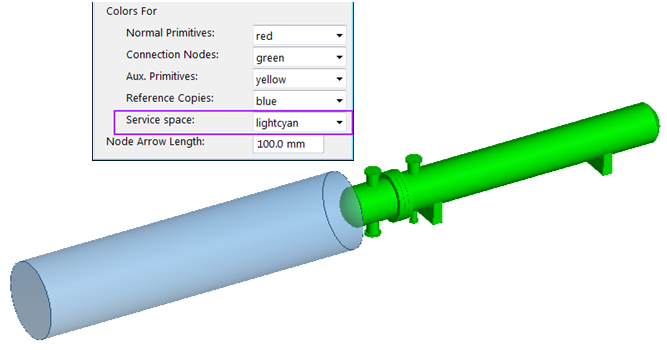
Note: In Plant Modeller, when a model object has been created from a GDL which contains a primitive marked as a Service Space, but the Service Space is missing from the model object, the program will automatically try to re-create the missing Service Space, if possible.
Remove markings
Select Role markings > Remove markings to remove markings from a primitive that has been marked as temporary object or Service Space.
Seams

No seam
Select Seams > No seam to hide the joint between two toroids or a toroid and a cylinder.
Show seam
Select Seams > Show seam to show the joint between two toroids or a toroid and a cylinder.