EDM
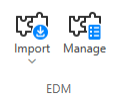
On the Data tab, the EDM group contains tools for importing object data from external sources to COS and then linking this data to diagram objects as additional attributes.
Import
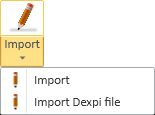
The Import button contains tools for importing external data from a CADMATIC XML or DEXPI XML file to the COS database.
After the import, you can link the imported EDM objects to diagram objects, as described in Manage.
Importing a CADMATIC XML File
You can import EDM objects from CADMATIC XML format.
Prerequisites
- The required data mappings have been defined as described in Edit settings.
Do the following:
-
Select Data tab > EDM group > Import > Import.
-
In the file browser, select the XML file from the file system, and click Open.
-
The Import Summary dialog lists the import results. Review the summary and click Close to close it.
The imported EDM objects are now stored in the COS database.
Importing a DEXPI XML File
You can import EDM objects whose type is Equipment from DEXPI XML format. These objects can link externally provided data directly to CADMATIC 3D or P&ID objects.
You cannot import objects whose type is Valve or Instrument. You cannot import pipelines or systems, or sub-items such as nozzles.
If the file contains objects whose External ID is already in COS, the import updates the data in COS.
Prerequisites
- The required data mappings have been defined as described in Edit settings.
Do the following:
-
Select Data tab > EDM group > Import > Import Dexpi file.
-
In the file browser, select the DEXPI XML file from the file system, and click Open.
-
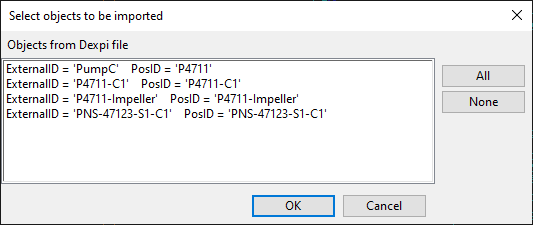
The Select objects to be imported dialog lists the objects of the XML file, displaying their External ID, Tag, and Position ID. Select whether to import all objects or just specific objects, and then click OK.
-
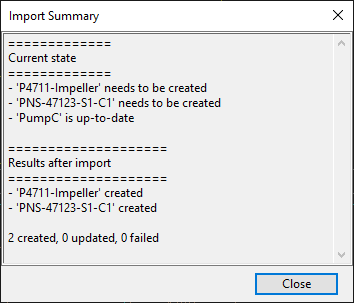
The Import Summary dialog lists the import results. Review the summary and click Close to close it.
The imported EDM objects are now stored in the COS database.

Manage

You can link an EDM object to a diagram object to assign externally defined attributes to the diagram object. If the EDM object is updated in COS, also the diagram object gets the updates.
If the EDM object has been linked to a 3D model object, updating integration data from P&ID to the 3D model creates an integration link (an EPD object) between the diagram object and the 3D object.
Do the following:
-
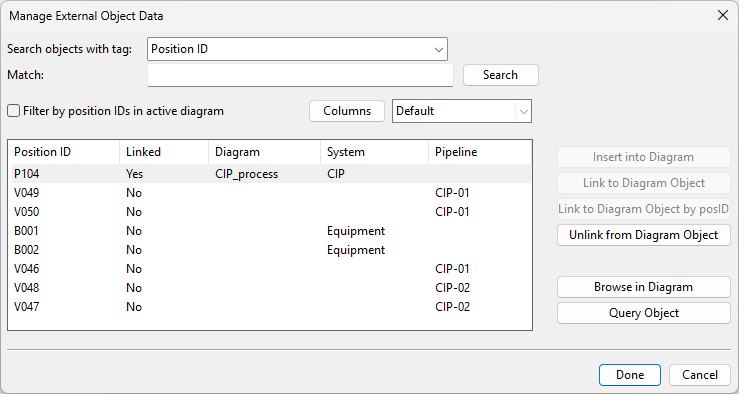
Select Data tab > EDM group > Manage. The Manage External Object Data dialog opens. You can click Columns to select which columns to show in the dialog.
-
To find a specific EDM object, you can do one of the following.
-
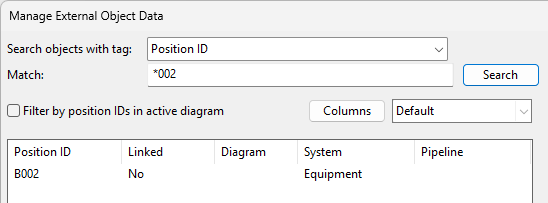
Select which tag to search, enter the search text (asterisk "*" functions as a wildcard), and click Search.
-
Select Filter by position IDs in active diagram to hide all those EDMs whose position ID is not in the active diagram.
-
-
To manage the linking, select an EDM object and then the appropriate action.
Note: This tool does not show EDM objects that have the "External Position ID Status" attribute set to "Deleted".
-
Insert into Diagram – Select this to insert a new diagram object that will then be linked to the EDM object. If you select this but the position ID of the EDM object is already in the active diagram, you are prompted whether to link to that object instead of inserting a new one.
-
Link to Diagram Object – Select this to pick the diagram object from the active diagram. If the EDM object has a different position ID, the position ID of the diagram object is used.
-
Link to Diagram Object by posID – Select this to link the EDM object to the diagram object that has the same position ID, if found in the active diagram.
-
Unlink from Diagram Object – Select this to remove the link between the EDM object and the diagram object.
-
Browse in Diagram – Zooms to the linked diagram object in the active diagram.
-
Query Object – Shows the database data of the linked diagram object in a separate dialog.
-
-
Click Done.