Identifiers
On the Data tab, the Identifiers group includes the following tools.
Generate PosID

You can assign the next free position ID to a diagram object, even if it already has a position ID. If the object is linked, then also the objects it is linked to get the same new ID.
Tip: You can do this also from the Property Pane: in the PosId row, select … and then Generate position ID.
Do the following:
-
Select Data tab > Identifiers group > Generate PosID.
-
Pick a diagram object. One of the following occurs:
-
If the object does not have a position ID, the next free ID is assigned to it.
-
If the object already has a position ID, you are prompted whether to change the ID. If you select Yes, the next free ID is assigned to it.
-
-
You can continue picking diagram objects to assign new position IDs to them or press Esc to exit the tool.
Reserved PosIDs

You can reserve position IDs and pipeline names for future use. Pipeline names are reserved inside P&ID only—it is possible to create a pipeline with the same (reserved) name in Plant Modeller. If integration is in use, the reservation can be seen also in Plant Modeller; if a user tries to insert a position ID that has been reserved in P&ID, the application notifies the user, but the user can still decide to ignore the reservation.
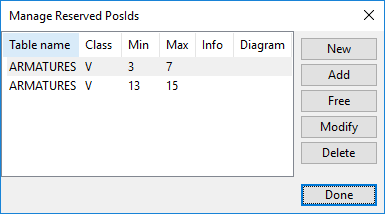
Select Data tab > Identifiers group > Reserved PosIDs. The Manage Reserved PosIds dialog opens, displaying the following columns.

|
Column |
Description |
|---|---|
|
Table name |
Name of database table that uses the position IDs. |
|
Class |
Specifies the prefix of the position ID or line number before consecutive numbering. |
|
Min |
Lowest value in the reserved range of consecutive numbers. |
|
Max |
Highest value in the reserved range of consecutive numbers. |
|
Info |
Optional text field for providing additional information. |
|
Diagram |
Optional text field that specifies which diagram will use the reserved numbers. |
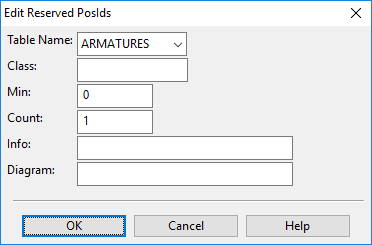
Use these buttons to manage the reservations:
-
New – Allows creating a new reservation. Does not check if the position ID has been reserved or used in the diagram before.
-
Add – Allows creating a new reservation. Checks which position IDs are already in use and reserves only the ones that are free.
-
Free – Allows removing single position IDs.
-
Modify – Allows modifying the currently selected reservation row.
-
Delete – Deletes the selected reservation row.
Systems and lines

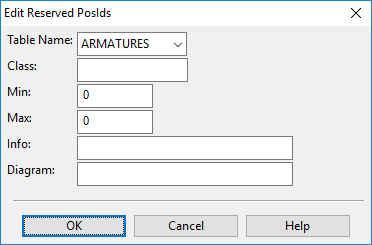
Select Data tab > Identifiers group > Systems and lines to open the Systems and Lines tool where you can manage lines and systems.