P&ID and eShare integration
P&ID can display data stored in CADMATIC eShare.
View eShare data
You can view the information that eShare has on a given diagram object.
Prerequisites
-
The eShare server's address is specified in project settings. See Managing project settings.
-
One of the following is true:
-
P&ID has published the diagram object to Plant Modeller, and Plant Modeller has published the related 3D model object to eShare.
-
P&ID has published the diagram to eShare, and eShare has an external adapter (such as the Microsoft Excel adapter) for adding data to model objects. This additional data can be viewed in P&ID even if Plant Modeller has not published the 3D model to eShare yet.
-
eShare includes a 3D model imported from an external source, and the eShare project administrator has set up an attribute settings configuration that maps the original model IDs to relevant CADMATIC ID tags: Equipment Position Id (.n5), Instrument Position Id (ipo), and Valve Position Id (vpo).
-
Do the following:
-
In the active diagram, select the diagram object whose information you want to see.
-
Right-click the diagram object and select Browse > View eShare data from the context menu.
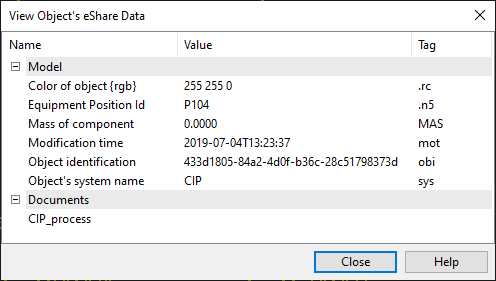
The View Object's eShare Data dialog opens, displaying the following information:
-
The Model section lists the object attributes available in eShare. The Name column can display the default attribute name or a custom name defined in the 3D publishing control used to publish the 3D model from Plant Modeller.
-
The Documents section lists the eShare documents that contain this object.
-
-
You can copy text from this dialog to the clipboard by selecting one or more text rows and pressing Ctrl+C or selecting Copy from the context menu.
-
You can export the selected rows or the whole table to a Microsoft Excel file by pressing Ctrl+E.
-
Click Close to close the dialog.

Examine with eShare
You can open the related 3D model object of a specified diagram object in eShare in examination mode.
Prerequisites
-
The eShare server's address is specified in project settings. See Managing project settings.
-
One of the following is true:
-
P&ID has published the diagram object to Plant Modeller, and Plant Modeller has published the related 3D model object to eShare.
-
P&ID has published the diagram to eShare, and eShare has an external adapter (such as the Microsoft Excel adapter) for adding data to model objects. This additional data can be viewed in P&ID even if Plant Modeller has not published the 3D model to eShare yet.
-
eShare includes a 3D model imported from an external source, and the eShare project administrator has set up an attribute settings configuration that maps the original model IDs to relevant CADMATIC ID tags: Equipment Position Id (.n5), Instrument Position Id (ipo), and Valve Position Id (vpo).
-
Do the following:
-
In the active diagram, select the diagram object to examine in eShare.
-
Do one of the following:
-
Right-click the diagram object and select Browse > Examine with eShare from the context menu.
-
In the Properties pane, open the eShare data tab and click Examine.
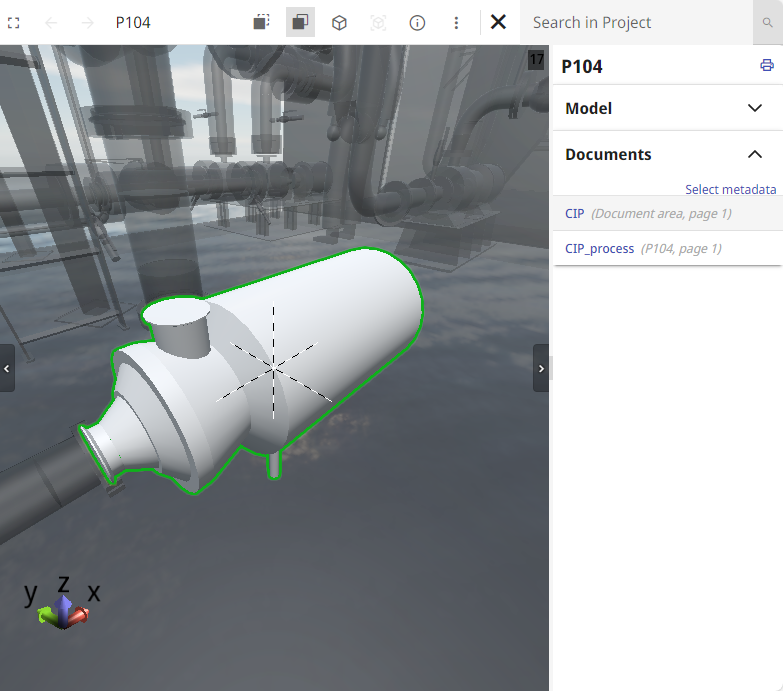
eShare opens in your default web browser and displays the model object in examination mode.
Note: If the eShare project is configured to require eShare App, you can copy the address from the web browser and paste it into eShare App.
-