Advanced object browser queries
You can use an advanced query to filter the list of objects in an object browser dialog with multiple criteria.
Do the following:
-
In the object browser, select Query > Advanced. The Edit Selection Test dialog opens.
-
Define selection tests that objects must pass to be included in the query results. For details, see Query test editor.
-
Click OK to apply the query. The object list is refreshed to show only objects that match the query.
Example: an advanced query for 2D symbols using modification date and name
-
In Plant Modeller, select File > Environment > All Library and Project.
-
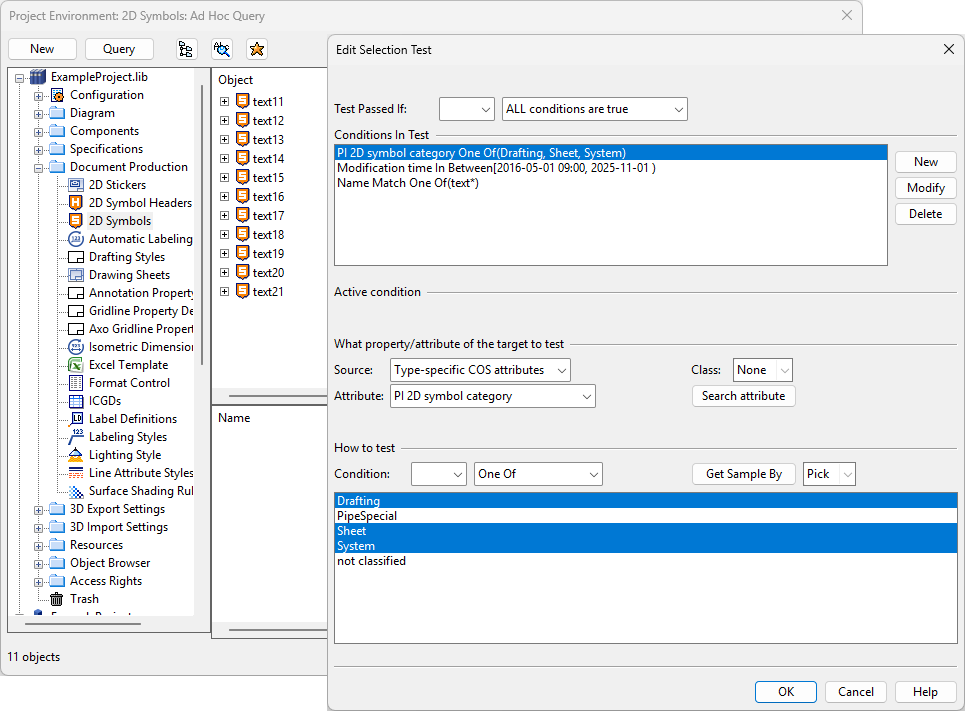
Browse to [library] > Document Production > 2D Symbols.
-
Select Query > Advanced.
-
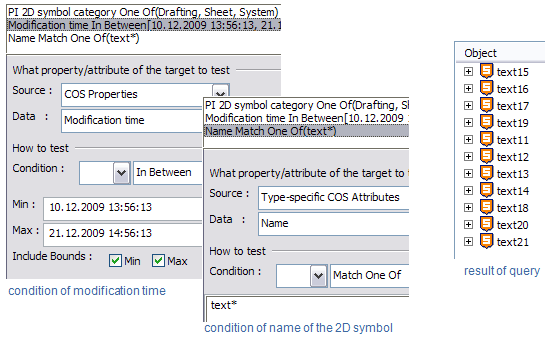
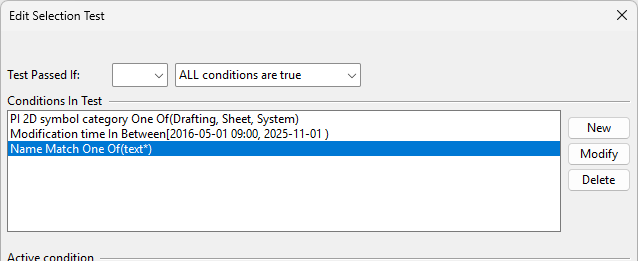
In the Edit Selection Test dialog, create the following test conditions:
-
The first condition: the object is a PI 2D symbol whose category is Drafting, Sheet, or System.
-
The second condition: the object has been modified between two dates.
-
The third condition: the object's name starts with "text".
-
-
Click OK. The object browser lists all 2D symbols whose modification date matches the test condition and name starts with "text".
-
If you plan to reuse the query later, save it to Favorites.