Page
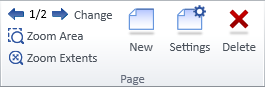
On the Home tab of the document editor, the Page group includes the following tools.
Note: The New and Delete buttons are not available for piping isometrics because they are always one-page documents.
Change page

On the Home tab, in the Page group, you can click  or
or  to navigate between pages. On the first page, opens the last page; on the last page, opens the first page. You can jump to a specific page by typing or selecting the page number in the current page field.
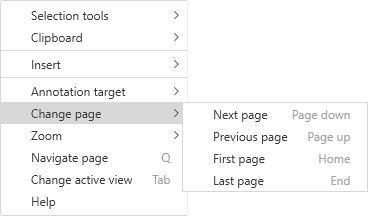
On all tabs, you can navigate between pages using context-menu commands or their shortcut keys.
Zoom area

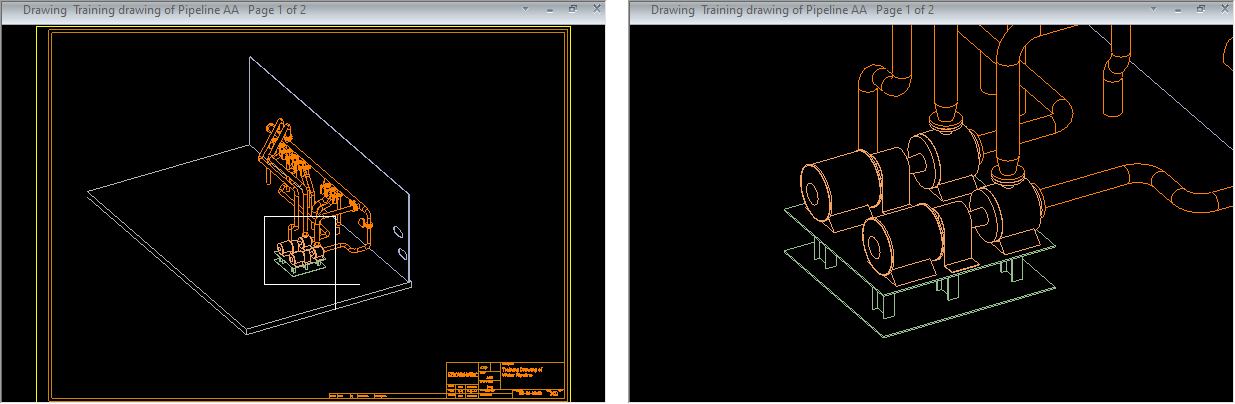
You can zoom to a specific area on the active page.
Do the following:
-
Select Home tab > Page group > Zoom area.
-
Define the area to zoom to by picking the first corner point and then the diagonally opposite corner point.

Zoom extents

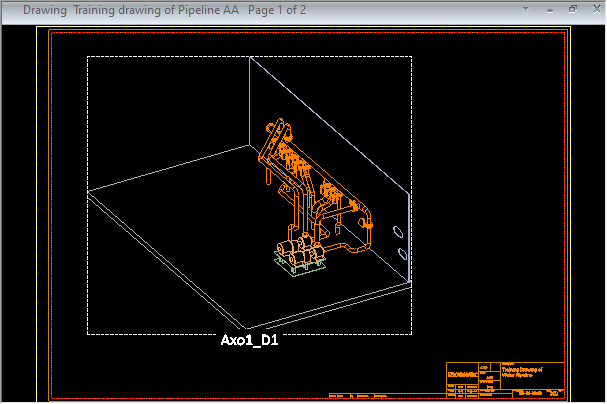
You can restore the default zoom level of the active page by selecting Home tab > Page group > Zoom extents.
New

You can add new pages to the open document.
Do the following:
-
Select Home tab > Page group > New. The Define New Page dialog opens.
-
Page Number displays the total number of pages in the open document, before adding the new page. Specify the location of the new page:
-
To add the new page to the beginning, click First Page or type "1" in the field.
-
To add the new page to the end, click Last Page or type the next available page number.
-
To add the new page before or after the active page, click Before Active or After Active, respectively.
-
To add the new page to any specific location, type the intended page number in the field.
Tip: You can change the location later in Settings.
-
-
Sheet displays the drawing sheet that the new page is to use. To change the sheet, click Select and choose the required sheet.
-
Click OK.
-
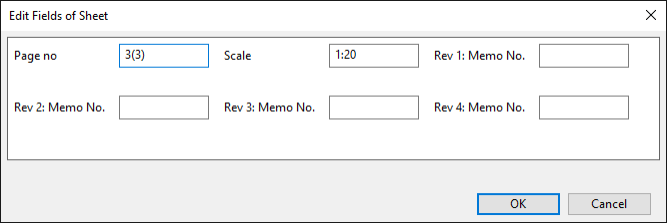
If the drawing sheet has fields that need to be filled in, the Edit Fields of Sheet dialog opens. Enter the required page-specific values and click OK.
-
Press Enter if you want to add another new page.

Settings

You can change the drawing sheet of the active page or move the page to a different location within the document.
Do the following:
-
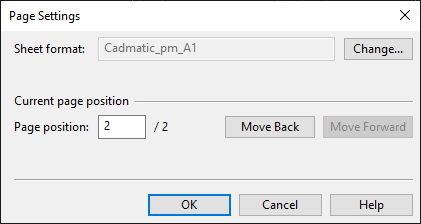
Select Home tab > Page group > Settings. The Page Settings dialog opens.
-
Sheet format displays the name of the drawing sheet that the active page is using. If you want to change the sheet, click Change and select the new sheet.
-
Page position displays the current page number of the active page. To move the page to a different location within the document, do one of the following:
-
Type the new page number.
-
Move the page one page at a time by clicking Move Back or Move Forward.
-
-
Click OK.
Tip: If you moved the page but fields on the drawing sheet still display the old page number, update the fields with the Edit fields of sheet tool. (The program does not update fields that the user has edited.)
Delete

You can remove the active page from the document by selecting Home tab > Page group > Delete and then confirming the removal.