Short Dimension
Draw > Dimension > Short

The method of creating short dimensions is slightly different for the orthogonal shell views (top, side, frame) and perpendicular shell views.
See also Chain Dimension, Indicating items, Snap keys.
Orthogonal Shell Views
In the orthogonal shell views, short dimensions can be placed horizontally, vertically (rotated), or orthogonally (perpendicular to an item).
Creating short dimensions
-
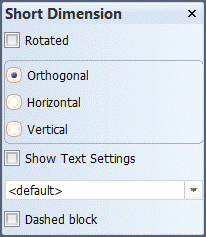
Select the orientation of the dimension: Orthogonal, Horizontal, or Vertical.
Orthogonal dimensions are perpendicular to the selected item. The system calculates the orientation of the dimension according to the orientation of the indicated item and the dimension's placing point.
-
Indicate an item – Click on an item for which you want to create a dimension, or move the mouse pointer to the item and press the space bar. You can use the snapping keys to force the system to use a specific point. See Snap keys.
-
Indicate where to place the dimension. After indicating this point the short dimension is placed.
The same placing point is used for aligning the second, third, etc. dimension to the first placed dimension during the same session, but only if they have the same orientation. If the new dimension has another orientation than the previously placed dimension, the systems prompts for a new placing point.
The types of items that can be selected by indicating them in the graphical window depend on the selected selection filter. See Selection filter below for more information.
Short Dimension options
-
Rotated – The dimension text is rotated 90 degrees. This is useful when there is not enough space for a normal short dimension.
 Show/hide image
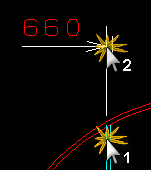
Short Dimension
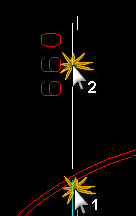
Rotated Short Dimension
-
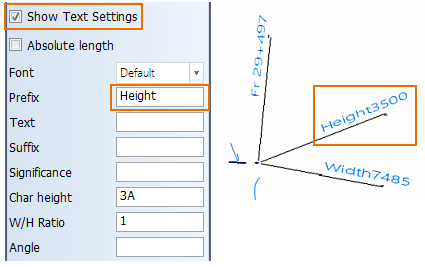
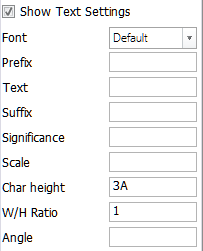
Show Text Settings – You can define and use other than the default text property settings for the dimensions that you place. Select Show Text Settings to show and define these text settings. They are applied to the next dimensions that you place.
To use ablolute length in the dimension text instead of a frame-based value like FR22+230, select Absolute length.
Show/hide details
-
Font – The font used for the text
-
Prefix – Prefix to add to the dimension
-
Text – Text to add to the dimension
-
Sufffix – Suffix to add to the dimension
-
Significance – The number of decimal digits shown for the dimension length
Note: The Significance setting cannot be applied when imperial units are used, and therefore this setting is disabled for projects using the imperial unit system.
-
Scale – Scale used for the dimension. Only available for chain dimensions.
-
Char height – The character height of the text
-
W/H Ratio – The width-to-height ratio of the text
-
Angle – The angle of the dimension text
Tip: Prefixes and suffixes can be used for distiguishing between breadth and length values, for example.
-
-
Selection filter – A selection filter defines which type of items can be selected in the graphical window. You can filter by selection group or by individual item type. The available individual item types depend on the application.
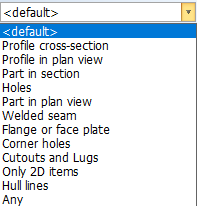
Selection groups appear at the top of the list. A selection group contains those item types that the Hull System Manager has included in it. Selection groups are defined in the System Management application, Extra > Customize > Dimensioning > Default Selection Groups.
-
Dashed block – When selected, also dashed items are selectable.
Function dependent options
Function dependent options are available in the hint bar at the top of the graphical window. See Hint bar.
- Chain Dimension – Activate the Chain Dimension function.
- Align – Align the new dimensions to existing dimensions. Indicate an existing short dimension or chain dimension to use as the reference point for the new dimension(s).
- Move Text – Move the dimension's text to another position.
Perpendicular, 3D Aft and 3D Fwd Shell Views
In perpendicular, 3D aft and 3D forward shell views, short dimensions can be placed for length, breadth, and height positions. You can dimension a certain item or point in all directions, for example, and add a series of dimensions. The dimensions can be projected on the hull shape, or on the inside or outside of the shell plate.
Creating Short Dimensions
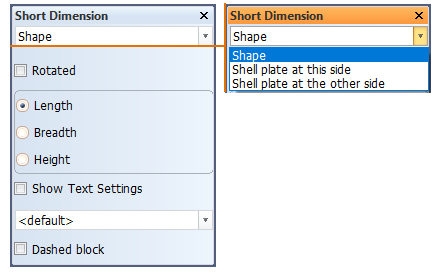
- Select how the dimension is projected: On the hull shape, this side of the shell plate, or the other side of the shell plate.
- Select the direction for which the dimension is placed: Length, Breadth, or Height.
- Indicate an item – Click on an item for which you want to create a dimension, or move the mouse pointer to the item and press the space bar. You can use the snapping keys to force the system to use a specific point. See Snap keys.
- Indicate where to place the dimension. After indicating this point the short dimension is placed.
The same placing point is used for aligning the second, third, etc. dimension to the first placed dimension during the same session, but only if they have the same orientation. If the new dimension has another orientation than the previously placed dimension, the systems prompts for a new placing point.
Short Dimension Options
-
Rotated – The dimension text is rotated 90 degrees. This is useful when there is not enough space for a normal short dimension.
Show/hide image
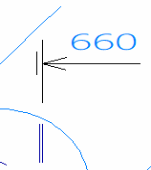
Short Dimension
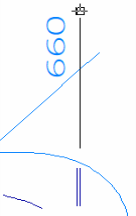
Rotated Short Dimension
-
Show Text Settings – Override the default text settings, and apply different settings for the new dimension(s) that you create.
-
Absolute length – Use absolute length in the dimension text instead of a frame-based value like FR22+230, for example.
-
Selection Filter – A selection filter defines which type of items can be selected in the graphical window. You can filter by selection group or by individual item type. The available individual item types depend on the application.
Selection groups appear at the top of the list. A selection group contains those item types that the Hull System Manager has included in it. Selection groups are defined in the System Management application, Extra > Customize > Dimensioning > Default Selection Groups.
-
Dashed block – When selected, also dashed items are selectable.
Presentation of Short Dimensions
In perpendicular views, the short dimension is following the fixed length, breadth or height (i.e. it is not orthogonally placed). In case the direction is the depth coordinate, the short dimension is displayed in a same way as the 2D text label. If a series of the same short dimensions is placed at several parts or items, the dimensions are aligned and shown as perpendicular to the direction.
Show/hide example
Below on the left, the short dimension points the length position of a plate. On the right, the short dimension is placed at a breadth coordinate in a perpendicular view that is almost like a side view.
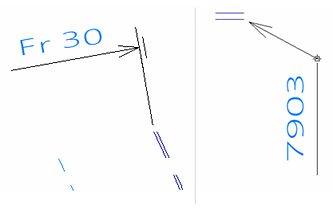
The image below shows a series of short dimensions placed along the length direction.
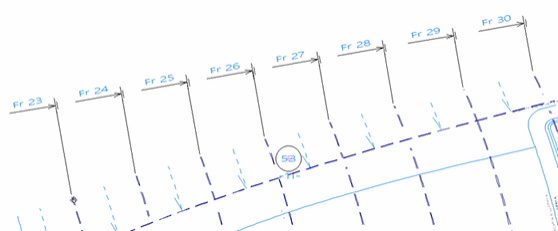
In 3D aft and 3D forward views, short dimensions at length are presented as horizontal, and at breadth and height as vertical.
Show/hide example
The image below shows short dimensions in an 3D Aft view placed at length, breadth, and height.

Tip: It may be difficult in some situations to tell whether a dimension is for height or breadth because the dimension texts are presented similarly. If you create short dimensions for breadth and height directions, you can define a prefix or a suffix to the dimension text in Show Text Settings to easily distinguish between the dimensions: