Insert objects
You can use the Template tool or Select Object pane to insert objects into the active diagram.
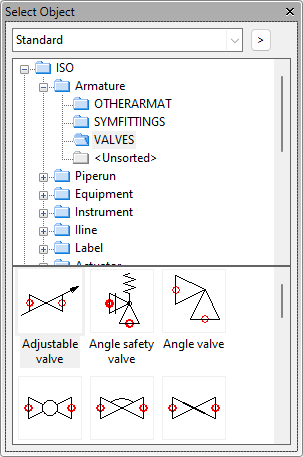
Inserting an object
You can insert a diagram symbol or line into the active diagram.
Do the following:
-
In the Select Object pane, double-click the diagram object template to insert.
-
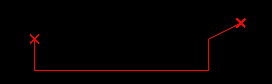
If inserting a cable, instrument line, or pipe run, select the points where it starts, turns, and ends.
-
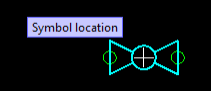
If inserting a diagram symbol, move the symbol to the intended location.
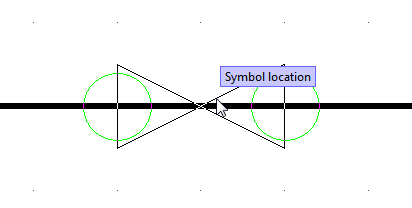
If the symbol includes nodes, they are marked with green circles. You can insert the symbol into a line—moving the symbol over a line highlights that line and automatically corrects the symbol's orientation, if possible—or connect it to another node in the diagram.
-
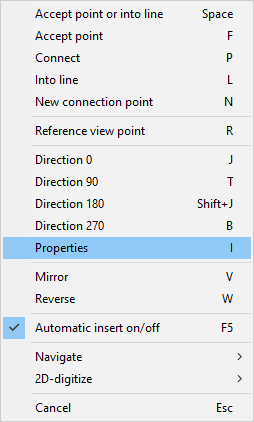
Before finalizing the placement, open the context menu to perform actions such as rotate or mirror, reverse the flow direction, or change the scale (via Properties).
-
Confirm the insertion by pressing Enter.
-
Depending on the object type and Symbol Default settings, you may be prompted to fill in the database record for the new object.

Inserting an object into a line
You can insert a diagram symbol with nodes into a cable, instrument line, or pipe run.
Do the following:
-
In the Select Object pane, double-click the diagram symbol.
-
Move the cursor to the required location in the target line. The line is highlighted.
-
Objects such as pumps and non-return valves that requires specific flow direction are automatically oriented. You can correct the orientation from the context menu, if needed.
-
Confirm the insertion by clicking, pressing Space, or using the Into line (L) context-menu command.
Inserting an object as a branch
You can insert an armature (valve) as a branch to a pipe run.
Do the following:
-
In the Select Object pane, double-click the required valve symbol.
-
Move the cursor to the required location in the target line. The line is highlighted.
-
Select the Connect as a branch (L) context-menu command.
Scaling an object during insertion
You can change the scale of diagram objects such as vessels (Equipment).
Do the following:
-
In the Select Object pane, double-click the diagram symbol.
-
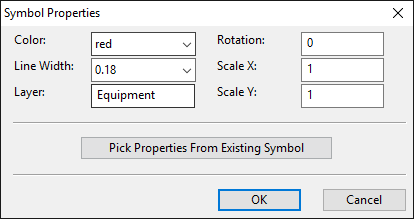
Right-click the diagram and select Properties (I). The Symbol Properties dialog opens.
-
Define ScaleX and ScaleY, and any other properties as necessary.
-
Click OK.