Drawing sheet's block editor
In the Drawing sheet editor, you can use the Block tools to add DWG blocks to the drawing sheet. When you add or open a block, the block editor toolbar appears. Closing the block editor restores the standard drawing sheet editor toolbar.
Using the block editor tools, you can customize the block's contents by inserting lines, rectangles, static or dynamic text, and 2D symbols. Dynamic text allows you to include DWG block attributes in the drawings, with their values automatically retrieved from CADMATIC document attributes.
You need to add a block with dynamic text to include a title box (title block) in P&ID sheets.
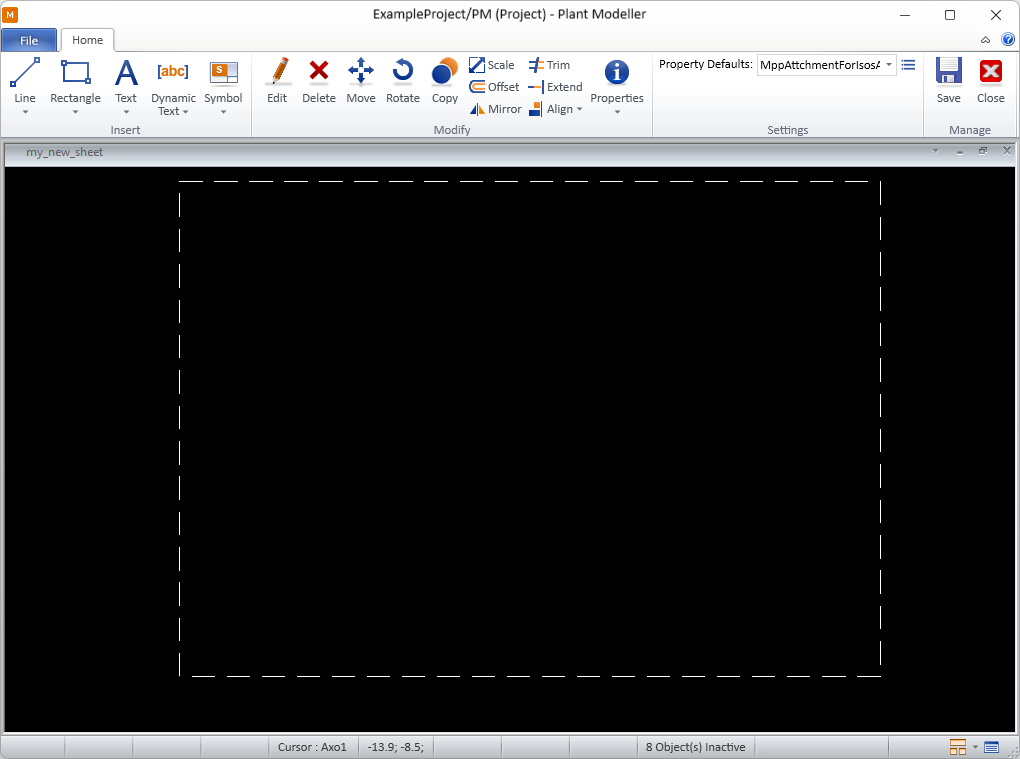
Insert
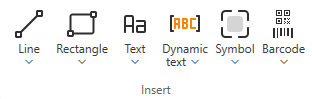
On the Block Editor tab, the Insert group includes the following tools.
Line | Rectangle | Text | Dynamic text | Symbol | Barcode
Line

You can insert lines that consist of one or more straight line segments and have the properties described in Line Properties.
By default, the line being inserted gets its properties from the currently selected Property Defaults. You can override these project defaults by making session-specific adjustments via Modify > Properties > Line/Rectangle properties. You can also adjust the properties of individual lines, both during and after the insertion.
You can modify existing line objects also using the generic Modify tools.
Insert line | Apply line properties
Insert line
You can insert lines into the block.
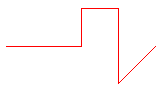
Do the following:
-
Select Block Editor tab > Insert group > Line > Insert line.
-
Pick the starting point of the line.
Tip: You can now change the line's properties by selecting Properties from the context menu.
-
Navigate to the next intended point for the line and pick that point. You can add as many points as needed and change the direction of the line at any point.
Tip: To draw horizontal or vertical lines, enable the Ortho (F8) option.
-
When you have added the last point, press Enter to complete the line.
Apply line properties
You can apply predefined Line Properties to existing lines.
Do the following:
-
Select Block Editor tab > Insert group > Line > Apply line properties.
-
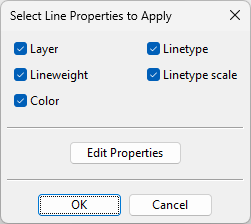
Select one or more lines from the block and press Enter. The Select Line Properties to Apply dialog opens.
-
All properties are selected by default; change the selections if appropriate.
-
To review or edit the properties before applying them, click Edit Properties.
-
Click OK.
Rectangle

You can draw rectangles that have the properties described in Line Properties.
By default, the rectangle being inserted gets its default properties from the currently selected Property Defaults. You can override these defaults by making session-specific adjustments via Modify > Properties > Line/Rectangle properties. You can also adjust the properties of individual rectangles, both during and after the insertion.
You can modify existing rectangles also using the generic Modify tools.
Insert
You can insert rectangles into the block.

Do the following:
-
Select Block Editor tab > Insert group > Rectangle > Insert.
-
Pick the first corner of the rectangle.
-
You can now change the rectangle's line properties by selecting Properties from the context menu.
-
Pick the opposite corner point to complete the rectangle.
Apply properties
You can apply predefined Line Properties to existing rectangles.
Do the following:
-
Select Block Editor tab > Insert group > Rectangle > Apply properties.
-
Select one or more rectangles from the block and press Enter. The Select Line Properties to Apply dialog opens.
-
All properties are selected by default; change the selections if appropriate.
-
To review or edit the properties before applying them, click Edit Properties.
-
Click OK.
Text

You can insert static multi-line text strings that have the properties described in Text Properties.
By default, the text being inserted gets its properties from the currently selected Property Defaults. You can override these defaults by making session-specific adjustments via Modify > Properties > Text properties. You can also adjust the properties of individual texts, both during and after the insertion.
You can modify existing texts also using the generic Modify tools.
Insert
You can insert texts into the block.
Do the following:
-
Select Block Editor tab > Insert group > Text > Insert.
-
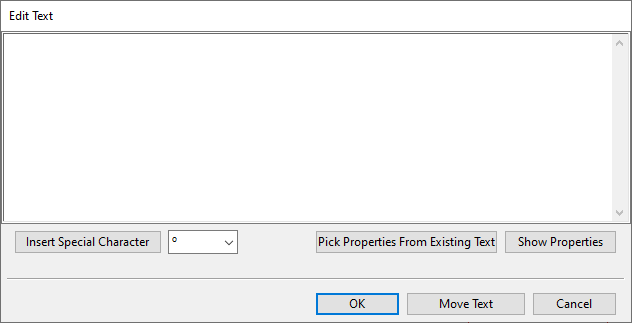
Pick the location where to add the text. The Edit Text dialog opens.
-
In the text pane, type the text to be inserted. If you need to insert special characters, use the Insert Special Character tool or paste a Unicode character from the clipboard, but be aware that not all fonts support all special characters.
-
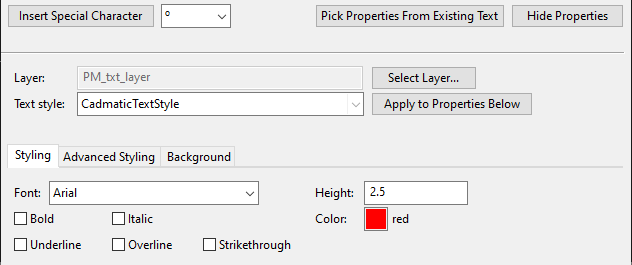
You can specify the text's appearance by using predefined text properties or formatting the text manually.
-
You can pick all the properties from an existing text. To do this, click Pick Properties From Existing Text, pick the source text and press Enter.
-
You can select a predefined style from the Text style field and click Apply to Properties Below to apply the style to the text.
-
You can edit any of the text's properties manually.
-
-
You can move the text by clicking Move Text and picking the new location.
Tip: While moving the text, you can rotate the text at 90° increments. Press the + (plus) key for counter-clockwise rotation and the = (equal) key for clockwise rotation, or select the respective command from the context menu.
-
Click OK.
-
Press Enter to insert another text.
Apply properties
You can apply predefined Text Properties to existing texts.
Do the following:
-
Select Block Editor tab > Insert group > Text > Apply properties.
-
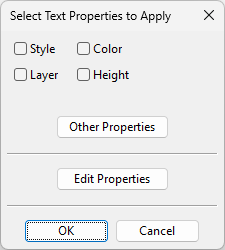
Select one or more texts from the block and press Enter. The Select Text Properties to Apply dialog opens.
-
Select which properties to apply to the texts.
-
Style – Select this option to set the target text's Text style field to the value defined in Text Properties. This does not immediately apply the style to the target text; you can apply the style later by opening the target text's properties and clicking Apply to Properties Below.
-
Layer – Select this option to set the target text's Layer field to the value defined in Text Properties.
-
Color – Select this option to set the target text's Color field to the value defined in Text Properties.
-
Height – Select this option to set the target text's Height field to the value defined in Text Properties.
-
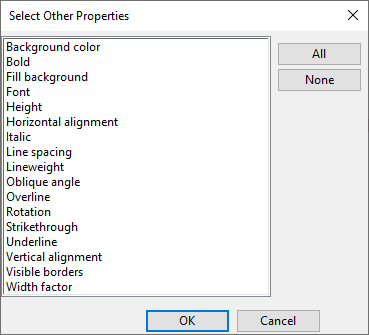
Other Properties – This button opens a list of all the properties that can be applied to the target text. Select the ones to be applied, and click OK.
-
-
To review or edit the properties before applying them, click Edit Properties.
-
Click OK.
Dynamic text

You can insert text that updates dynamically into the block, provided that the documents using this drawing sheet contain the necessary attributes to populate the dynamic text. P&I diagrams can use dynamic text for title box information.
Insert dynamic text | Manage dynamic texts
Insert dynamic text
You can insert dynamic text into the block.
Do the following:
-
Select Block Editor tab > Insert group > Dynamic text > Insert dynamic text.
-
Pick the origin point for the text. The Edit Dynamic Text dialog opens.
-
Specify the dynamic text properties described in Edit Dynamic Text as well as the normal Text Properties that define the text's appearance.
-
Click OK.
Manage dynamic texts
You can manage the dynamic texts of the block you are editing.
Do the following:
-
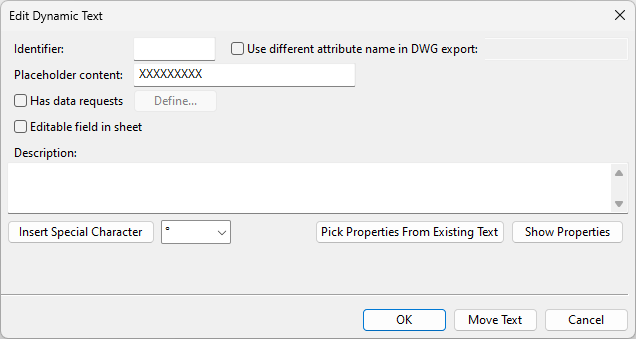
Select Block Editor tab > Insert group > Dynamic text > Manage dynamic texts. The Manage Dynamic Texts dialog opens, listing the dynamic texts of this block.
-
Select what to do:
-
To create a new dynamic text, click Create and follow the steps outlined in Insert dynamic text.
-
To edit the selected dynamic text, click Edit and modify the properties described in Edit Dynamic Text and Text Properties.
-
To delete the selected dynamic text, click Delete.
-
-
Click OK.
Edit Dynamic Text
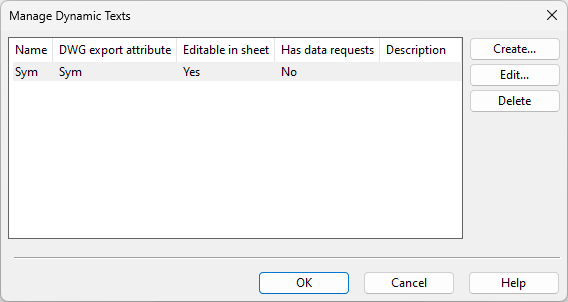
The Edit Dynamic Text dialog includes the following settings.
|
Setting |
Description |
|---|---|
|
Specify a unique string (1–3 characters) to identify the dynamic text within the drawing sheet. By default, this string will also be used as the name of the DWG block attribute during drawing export, unless a different attribute name is specified. |
|
|
Select this option to define a specific DWG block attribute name for the dynamic text during drawing export. If this is not specified, the value of the Identifier field will be used. |
|
|
You can use this function to evaluate how the dynamic text will look on the document page. Enter a text string that represents the kinds of values the dynamic text will usually display. Note: If no data requests are defined, the placeholder string itself will appear in the drawings. |
|
|
Select this option and click Define to open the Data Request Definition dialog and define the data requests that will update the dynamic text. |
|
|
Select this option to allow manual editing of the dynamically generated text through the Edit fields of sheet command of the document editor or the Edit title box function of P&I diagrams. |
|
|
Optionally, enter a description to be shown in the Manage Dynamic Texts dialog. You can use the Insert Special Character tool to insert special characters into the description. |
After defining the dynamic text settings above, you can adjust the text's appearance by copying Text Properties from another text or by clicking Show Properties to define them manually.
Data Request Definition
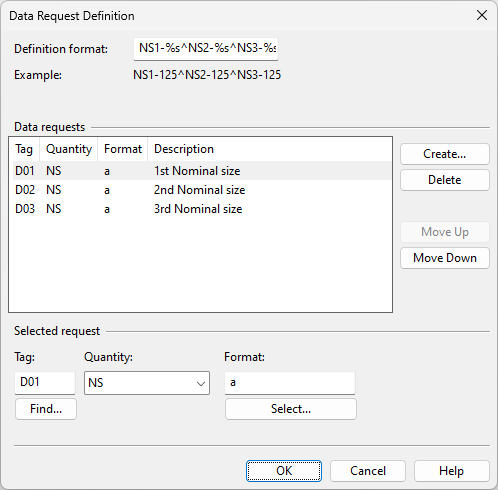
In the Data Request Definition dialog, you can define the data requests that will update the dynamic text when the drawing sheet is used in a drawing.
Do the following:
-
Create the required data requests as follows.
-
In the Data requests section, click Create.
-
In the Selected request section, define the request using the appropriate Quantity definitions and their units of measure.
-
Tag – Find or type the tag of the attribute whose value to retrieve into the column.
-
Quantity – Select the quantity type of the value.
-
Format – Specify how to format the retrieved value, if applicable.
-
-
-
In the Definition format field, ensure that each data request is represented with a formatting code that specifies how to present the retrieved values.
You can insert the caret ^ character between formatting codes to split the values into separate rows. For example, if you have three data requests that retrieve nominal sizes 1–3, you may use something like "NS1-%s NS2-%s NS3-%s" to put them all in the same row or "NS1-%s^NS2-%s^NS3-%s" to split them into three rows.
Symbol

You can insert 2D symbols that have the properties described in Symbol Properties.
By default, the symbol being inserted gets its properties from the currently selected Property Defaults. You can override these defaults by making session-specific adjustments via Modify > Properties > Symbol properties. You can also adjust the properties of individual symbols, both during and after the insertion.
You can modify existing symbols also using the generic Modify tools.
Insert
You can insert 2D symbols into the block.
Do the following:
-
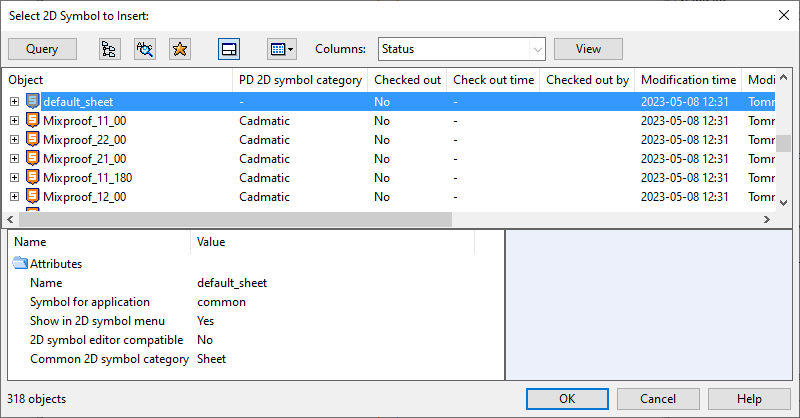
Select Block Editor tab > Insert group > Symbol > Insert. The Select 2D Symbol to Insert object browser dialog opens.
-
Select the symbol to insert and click OK.
-
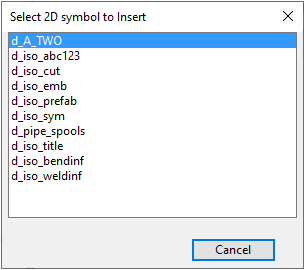
If the 2D symbol script defines multiple symbols, a secondary dialog opens. Click the name of the required symbol.
-
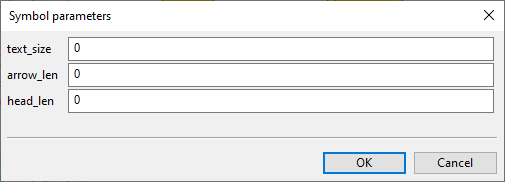
If the symbol requires parameters, the Symbol parameters dialog opens. Enter the required parameters and click OK.
-
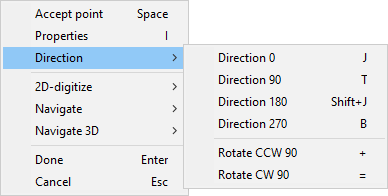
Move the symbol to the intended location. While moving the symbol, you can right-click the view to open the context menu which allows you to rotate the symbol or access the symbol properties.
-
Pick the origin point where to add the symbol.
-
Press Enter to insert another symbol.
Apply properties
You can apply predefined Symbol Properties to existing 2D symbols.
Do the following:
-
Select Block Editor tab > Insert group > Symbol > Apply properties.
-
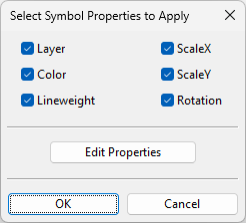
Select the symbols to which to apply the properties and press Enter. The Select Symbol Properties to Apply dialog opens.
-
All properties are selected by default; change the selections if appropriate.
-
To review or edit the properties before applying them, click Edit Properties.
-
Click OK.
Barcode

You can insert and modify 2D barcodes in the active block. These barcodes can be read, for example, with a barcode scanner or phone camera.
You can modify existing barcodes also using the generic Modify tools, except their type and content can only be modified with the 'edit content' barcode tool.
Note: Barcodes within drawing sheets are of higher quality and are also embedded into DWG files. In contrast, barcodes inserted directly into drawings may not be as clear, especially when scaled to a very small size, and in DWG export they become referenced image files that must travel with the document.
Insert | Edit content | Rescale | Move | Delete
Insert
You can insert barcodes into the block.
Do the following:
-
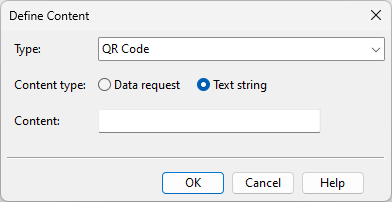
Select Block Editor tab > Insert group > Barcode > Insert. The Define Content dialog opens.
-
Specify the barcode settings.
-
Type – Select the barcode type.
 Show/hide details
QR Code

Data Matrix
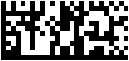
Code 39
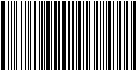
Code 93
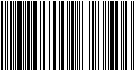
Code 128
Aztec

-
Content type – Select how to create the barcode.
-
Data request – Select this option to generate the content with a Data Request Definition.
-
Text string – Select this option to specify the content in the Content field.
-
-
Content – Enter the text string to include in the barcode.
-
-
Click OK.
Edit content
You can change the barcode type, content type, and edit the content of barcodes in the block.
Do the following:
-
In the Block Editor tab > Insert group, select Barcode > Edit content.
-
Select the barcode to edit. The Define Content dialog opens.
-
Make the required changes, and click OK.
Rescale
You can rescale barcodes in the block.
Do the following:
-
Select Block Editor tab > Insert group > Barcode > Rescale.
-
Select the barcodes to rescale and press Enter.
-
Pick the base point for the rescaling. The Rescale Objects in a Set dialog opens.
-
Enter the scaling value, and click OK.
Move
You can move barcodes to a different location in the block.
Do the following:
-
Select Block Editor tab > Insert group > Barcode > Move.
-
Select the barcodes to move and press Enter.
-
Pick the base point for the move.
-
Pick the new location for the base point. You can move the barcodes incrementally by picking a new target point as many times as necessary.
-
Press Enter to confirm the move.
Delete
You can delete barcodes from the block.
Do the following:
-
Select Block Editor tab > Insert group > Barcode > Delete.
-
Select the barcodes to delete and press Enter.
Modify
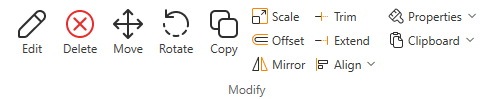
On the Block Editor tab, the Modify group includes the following tools.
Edit | Delete | Move | Rotate | Copy | Scale | Offset | Mirror | Trim | Extend | Align | Properties | Clipboard
Edit

You can modify an object in the block.
Do the following:
-
Select Block Editor tab > Modify group > Edit. The cursor displays as a crosshair.

-
Select the object to edit.
-
Edit the object.
-
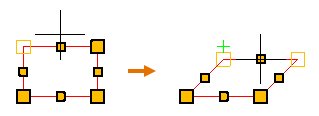
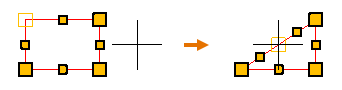
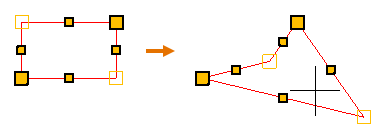
If you picked a line or rectangle, its line points are displayed.
You can click and drag or use the additional tools to customize the object.
Show/hide details
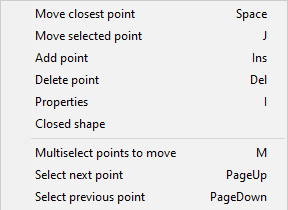
The context menu includes the following tools:
-
Move closest point (Space) – This is the same as clicking with the left mouse button; the command selects the point closest to the cursor and allows you to move that point. If you click a line segment's middle point, the command selects both end points of that segment.
Repeat the command or click to accept the move.
-
Move selected point (J) – Allows you to move the selected line point, regardless of where the cursor is when you start the command.
Repeat the command or click to accept the move.
-
Add point (Ins) – Adds a new line point.
-
Delete point (Del) – Deletes the selected line point.
-
Properties (I) – Opens the properties dialog described in Line Properties. The changes you make only affect the selected line object.
-
Closed shape – Connects the end points with one or more additional line segments to form a closed shape. If the line is already closed, removes a line segment to make the line open-ended.
-
Multiselect points to move (M) – Allows you to select several points from a line object. Press Enter to accept the set and then move the selected points to the required location.
-
Select next point (PageUp) – Selects the next line point.
-
Select previous point (PageDown) – Selects the previous line point.
-
-
If you picked text, the Edit Text dialog opens, displaying the properties that were defined when inserting the Text. Modify the properties as required.
-
If you picked dynamic text, the Edit Dynamic Text dialog opens. Modify the properties as required.
-
If you picked a 2D symbol, its origin point is displayed.
You can click near the origin point to start moving the symbol, or you can use the additional tools to customize the object.
Show/hide details
The context menu includes the following tools:
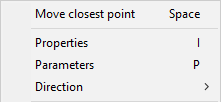
-
Move closest point (Space) – This is the same as clicking with the left mouse button; the command selects the origin point and allows you to move the symbol.
-
Properties (I) – Opens the properties dialog described in Symbol Properties. The changes you make only affect the specified symbol object.
-
Parameters (P) – Opens a symbol-specific dialog for changing the parameters of the symbol.
-
Direction – Opens a menu for selecting the direction of the symbol.
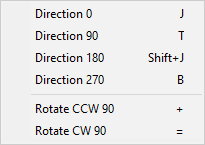
-
-
-
Press Enter to accept the modified object.
The cursor turns into a cross-hair again to indicate that you can pick another object for editing.
-
Press Enter or Esc to stop editing objects.
Delete

You can delete objects from the block.
Do the following:
-
Select Block Editor tab > Modify group > Delete.
-
Select the objects to delete, and press Enter.
-
Press Enter again to delete another set of objects.
Move

You can move objects to a different location within the block.
Do the following:
-
Select Block Editor tab > Modify group > Move.
-
Select the objects to move, and press Enter.
-
Pick the base point and a second point. This defines the direction and the offset and moves the objects.
-
You can pick another point, as many times as needed, to move the objects incrementally.
-
Press Enter to complete the move operation.
-
Press Enter again to move another set of objects.
Rotate

You can rotate objects in the block around the specified base point.
Do the following:
-
Select Block Editor tab > Modify group > Rotate.
-
Select the objects to rotate, and press Enter.
-
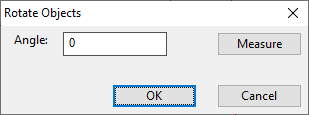
Pick the base point for the rotation. The Rotate Objects dialog opens.
-
Enter the rotation angle. Alternatively, click Measure to measure the angle using two base points and directions. Then click OK.
-
Press Enter to rotate another set of objects.
Copy

You can copy objects in the block. The copies are created in a given direction, with the same amount of offset between the copies.
Do the following:
-
Select Block Editor tab > Modify group > Copy.
-
Select the objects to copy, and press Enter.
-
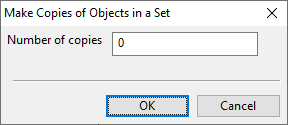
Pick the base point and a second point. This defines the direction and the offset for the copying, and the Make Copies of Objects in a Set dialog opens.
-
Enter the number of copies to create, and click OK.
-
Press Enter to copy another set of objects.
Scale

You can scale objects in the block.
Note: You cannot use this command on dynamic text.
Do the following:
-
Select Block Editor tab > Modify group > Scale.
-
Select the objects to rescale, and press Enter.
-
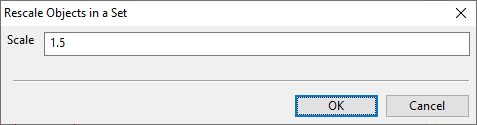
Pick the base point for the rescaling. The Rescale Objects in a Set dialog opens.
-
Enter the scaling factor to use and click OK.
Offset

You can copy an existing line or rectangle object in the block so that the new object is inserted at a user-defined offset on either side of the original object. For example, if the original object is a rectangle, you can use this command to insert a smaller rectangle inside or a larger rectangle outside the original object.
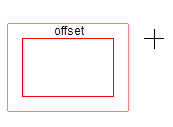
Do the following:
-
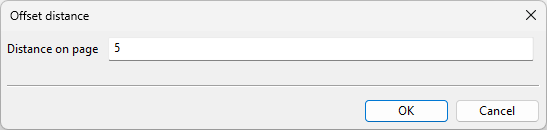
Select Block Editor tab > Modify group > Offset. The Offset distance dialog opens.
-
Specify the distance from the original object to the new object, and click OK.
-
Select the object to copy.
-
Move the cursor to that side of the original object where you want the new object to be placed, and click to accept the insertion.
Mirror

You can mirror objects in the block. You can choose whether to keep the original objects after the mirroring.
Note: You cannot use this command on dynamic text.
Do the following:
-
Select Block Editor tab > Modify group > Mirror.
-
Select the objects to mirror, and press Enter.
-
Define the mirror line by picking the first point (the line rotates around this point) and the second point.
-
You are prompted whether to keep the source objects. Select Yes to keep them or No to delete them.
Trim

You can remove a part of a line in the block, up to the point where it intersects with another straight line or a rectangle.
Do the following:
-
Select Block Editor tab > Modify group > Trim.
-
Select the line to trim.
-
Select the part to remove from the line.
Extend

You can extend the end of a line in the block to the boundary of another straight line or a rectangle.
Do the following:
-
Select Block Editor tab > Modify group > Extend.
-
Select the line to extend.
-
Move the cursor in the direction you want the line to extend, and click to accept the insertion.
Align

You can align the top, bottom, left or right sides of objects in the block.
Do the following:
-
Select Block Editor tab > Modify group > Align and then the side to align.
-
Select the objects to align, and press Enter.
The object that is farthest in the given direction stays where it is, and the other objects in the set are aligned with it.
Properties

The Properties drop-down menu contains tools for temporarily changing the default properties of the insertion tools and for changing the properties of existing objects.
Current properties | Objects in a set | Set properties in a set
Current properties
The Insert commands use the Annotation Property Defaults settings currently selected in the Property Defaults field when inserting new text or applying default properties to existing text. You can override the project defaults of the following entities in the current editing session:
-
Line/rectangle
-
Text
-
Symbol
That is, changing these properties via the Properties drop-down menu will make them the new defaults in the current editing session. The original default values will be restored when you close the drawing sheet's block editor.
For more information on the different properties, see Annotation Properties.
Objects in a set
In the Properties menu, the Objects in a set section contains tools for changing the properties of several objects at the same time.
Apply properties
You can apply the current default properties to a set of objects. The default properties can be:
-
The default properties in Annotation Property Defaults.
-
The default properties of this editing session. That is, if you have modified the properties as described in Current properties, then those settings are used as the default properties until you close the block editor.
Do the following:
-
Select Block Editor tab > Modify group > Properties > Apply properties.
-
Select the objects whose properties to change and press Enter.
The relevant properties are applied to the specified objects.
Set properties in a set
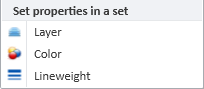
In the Properties menu, the Set properties in a set section contains tools for setting a specific layer, color, or lineweight to several objects at the same time, regardless of their object type.
Do the following:
-
Select Block Editor tab > Modify group > Properties and then Layer, Color, or Lineweight.
-
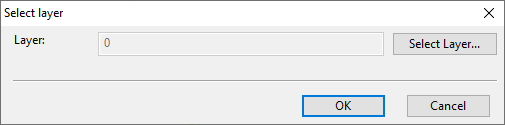
Select the objects to include in the set, and press Enter. A dialog opens for selecting the new value.
-
Select the property value to assign and click OK.
Clipboard
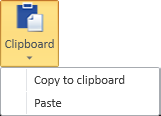
You can copy 2D drafting objects to the clipboard and then paste them to a sheet or block.
Copy to clipboard
You can copy 2D drafting objects to the clipboard.
Note: You cannot copy dynamic text or barcodes to the clipboard.
Do the following:
-
Select Home tab > Modify group > Clipboard > Copy to clipboard.
-
Select the objects to copy, and press Enter.
-
Pick the base point to use when pasting the objects and press Enter.
Paste
You can paste 2D drafting objects from the clipboard.
Do the following:
-
Select Home tab > Modify group > Clipboard > Paste.
-
Move the cursor to the intended location of the pasted object, using the base point you defined when copying the objects, and pick that location.
Settings
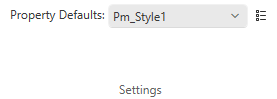
On the Block Editor tab, the Settings group includes the following setting.
Property Defaults
Select Annotation Property Defaults for the elements in this block, either from the menu or using the object browser.
Manage
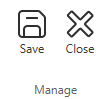
On the Block Editor tab, the Manage group includes the following tools.
Save

Select Block Editor tab > Manage group > Save to save the block locally.
Close

Select Block Editor tab > Manage group > Save to close the block editor and display the Drawing sheet editor.