Diagram
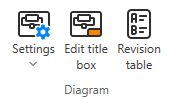
On the Data tab, the Diagram group includes the following commands.
Settings
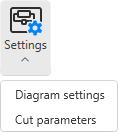
You can edit the settings of the active diagram.
Diagram settings | Cut parameters
Diagram settings
You can modify the general settings of the active diagram, such as the type of the diagram and the sheet that it is using.
Do the following:
-
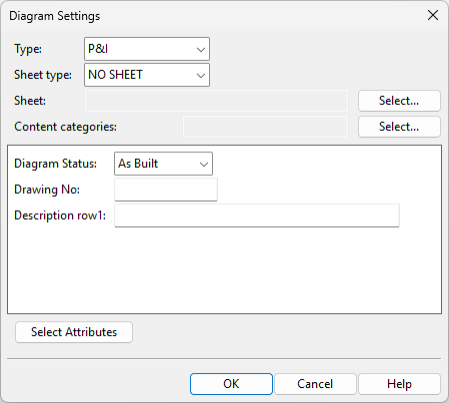
Select Data tab > Diagram group > Settings > Diagram settings. The Diagram Settings dialog opens.
-
Specify the new settings.
-
Type – Select the type of the diagram.
-
P&I – Select this option for a Piping & Instrumentation diagram. These diagrams describe the operations related to chemical engineering or process engineering at a more detailed level than what PFDs do.
-
Electric – Select this option for a diagram that describes the operations of an electrical system.
-
PFD – Select this option for a Process Flow Diagram that describes the major equipment and the primary process flows in a chemical engineering or process engineering facility at a fairly high level. A flowsheet might show, for example, how materials or objects are moved from one operative point to another for chemical transformation or physical assembly, and what is the flow direction between two consecutive operations.
Important: Only P&I diagrams publish the topological network of pipelines into the 3D model, which allows piping designers to use diagram-based pipe routing assistance. See P&ID integration in 3D routing.
Note: All diagram types publish EPD objects to COS, which allows P&ID to Highlight diagram objects that exist in the 3D model.
-
-
Sheet type – Select the type of drawing sheet. The sheet defines aspects such as the page size and the appearance of the title box.
-
NO SHEET – The diagram does not use a drawing sheet.
-
DWG compatible – The diagram uses a DWG-compatible drawing sheet. For more information on this sheet type, see Drawing sheets (DWG).
-
Startup Script – The diagram uses a startup script to create the drawing sheet.
-
-
Sheet or Script – Select the DWG sheet or startup script to use.
-
Content categories – Select the Content Categories to use for this diagram.
-
Enter values for the attributes of the diagram; click Select Attributes to add or remove attributes.
-
-
Click OK.

Note: Depending on the changes you made, you may need to select Home > Label > Update > All labels to make the title box texts visible again, if they are not updating automatically as described in Automatic Update.
Cut parameters
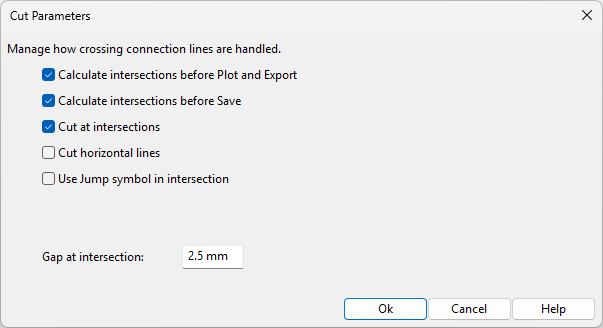
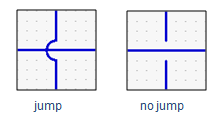
Select Data tab > Diagram group > Settings > Cut parameters to open the Cut Parameters dialog where you can define settings for adding a cut or jump symbol to locations where connection lines cross each other.
-
Calculate intersections before Plot and Export – Select this option to automatically update the intersection symbols when plotting or exporting the diagram.
-
Calculate intersections before Save – Select this option to automatically update the intersection symbols when saving the diagram.
-
Cut at intersections – Select this option to indicate intersections by cutting. By default, this is done by cutting the vertical connection line.
-
Cut horizontal lines – Select this option to indicate intersections by cutting the horizontal connection line instead of the vertical one.
Note: If a thin and thick line intersect, the one that will be cut is primarily determined by the Cutlevel and CutLevel of thickline settings of their systems—see Advanced Visualization Settings—the line with the smaller cutlevel value is cut at the intersection. If the cutlevel values are the same or contradictory, then the cutting is made according to the diagram-specific settings.
-
Use Jump symbol in intersection – Select this option to display a jump symbol instead of cutting the line.
-
Gap at intersection – Specify the gap size at the intersection. This is applied to both cuts and jump symbols. The default gap size is 2.5 mm.
Edit title box

You can edit the information shown in the title block of the active diagram.
Prerequisites
One of the following:
-
The diagram uses a DWG drawing sheet that includes a block with dynamic text fields defined as editable. See Drawing sheet's block editor.
-
The diagram uses a startup script-based drawing sheet. See P&ID Sheets.
Do the following:
-
Select Data tab > Diagram group > Edit title box.
-
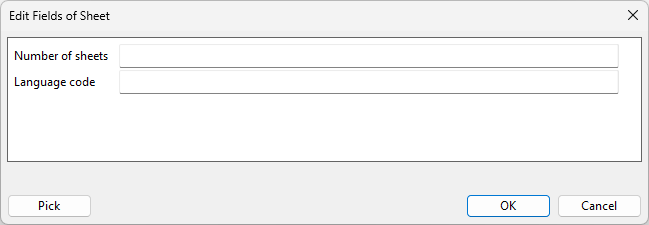
If the diagram uses a DWG sheet, the Edit Fields of Sheet dialog opens.
-
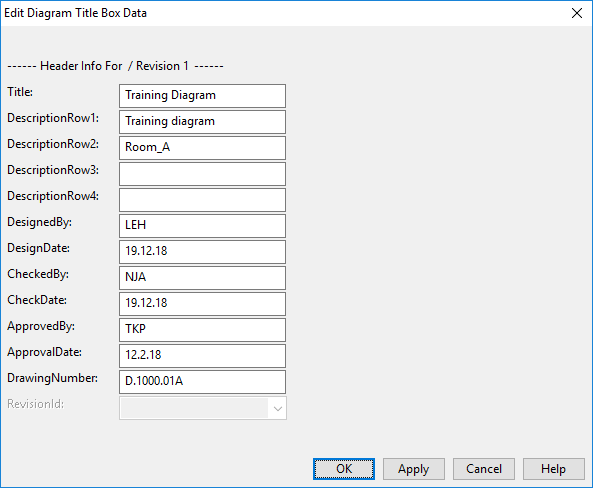
If the diagram uses a script-based sheet, the Edit Diagram Title Box Data dialog opens.
-
-
Edit the fields as required, and click OK. The changes are displayed in the diagram.
-
To update the changes to COS, select File > Save to COS database. If the project administrator has enabled synchronization (see Synchronizing document attribute and title box values), the new values are also saved to the associated COS document attributes.
Revision table

Select Data tab > Diagram group > Revision table to open the Manage Revisions dialog where you can specify revision, designer, revision reason, revision date, and additional document revision information that administrator has defined in the project settings to be included, as described in Document Revision and Publishing.
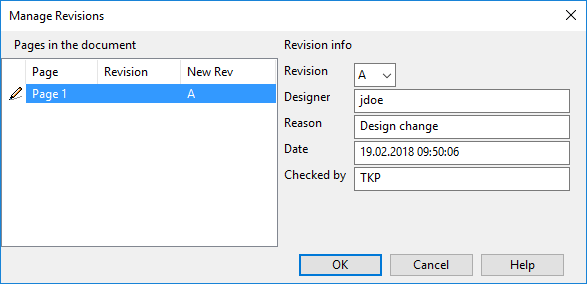
The Manage Revisions dialog shows the details of the current revision, and you can edit the values if needed. When you select a new revision from the Revision field and click OK, the new revision is added to the revision table label of the document, and the previous revision's values cannot be edited anymore.
The revision table data is updated to the diagram document when labels are updated with Home > Label > Update > Label or All Labels. Administrator can also set labels to be automatically updated, as described in Automatic Update.
Note: Administrator can set the revision number in diagram's title box to be automatically updated when diagram is published to 3D. This is done in the Database Table Manager, by opening the PI_CATALOG table and mapping the RevisionId column to the Generic Attribute "Publication revision" (.h7). See Database Table Manager.
Before designers can use the revision table, it must be correctly set in the P&ID sheet script and revision table script, as described in 'sheets' script and The revision_table Script, respectively.