Ownership
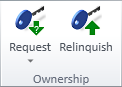
On the Model tab, the Ownership group includes the following tools.
Tip: You can display the ownership status of all objects in the model area by coloring objects in shaded work views by owner—see Change color style.
Check out

You can only modify objects that you have checked out. New objects that you have inserted into the model remain checked out to you until you check them in.
If a model object has a 3D Space object (Service Space, Cable Way Space) attached to it, checking out the object will normally also check out the 3D Space.
If a model object belongs to one or more Groups, checking out the object will normally also check out its groups. In some situations, you may want to perform a check-out that targets a group instead of individual model objects, which you can do through the Select by group (G) context-menu option. For more information, see Selecting groups and their members.
Prerequisites
- Model area access rights allow you to check out the objects. See Set model area access rights and save.
- The objects to be checked out are not checked out to another user. Otherwise, you must ask that user to check in the objects first.
- If you are working in a distributed project and the objects are checked in at another site, you must Request ownership of the objects. Then you can Load updates to your site and check out the objects.
Do the following:
-
Select Model tab > Ownership group > Check out.
-
Select the objects or groups to be checked out, and press Enter.
-
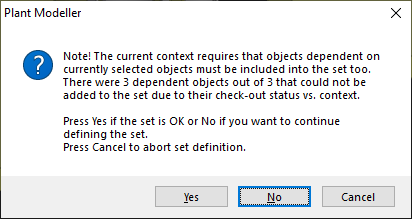
You are prompted when dependent objects could not be included in the set. Select how to proceed:
- Yes – Check out the objects that can be checked out.
- No – Return to object selection.
- Cancel – Cancel the check-out operation.
-
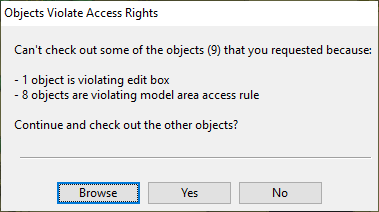
You are prompted when the selected objects are not inside the area where you are allowed to make changes or are not included in the access rule you are using. Select how to proceed:
- Browse – Open the Objects Violating Access Rights view to show the problematic objects.
- Yes – Check out the objects you are allowed to modify.
- No – Cancel the check-out operation.
Cancel check out

You can cancel check-outs to discard changes you have made to objects after the last time you updated your changes to COS.
If a model object has a 3D Space object (Service Space, Cable Way Space) attached to it, its changes are also canceled.
This operation does not affect new objects that you have inserted into the model but have not yet updated to COS.
Do the following:
-
Select Model tab > Ownership group > Cancel check out.
-
Select the objects or groups whose check-out is to be canceled, and press Enter.
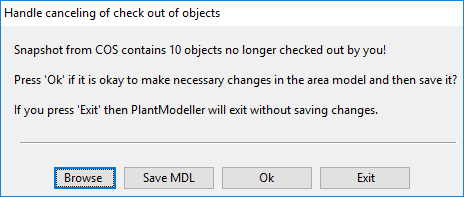
The Handle canceling of check out of objects dialog opens for selecting how to proceed.
-
You can do the following:
- Browse – Show the selected objects in a preview window.
- Save MDL – Save the selected objects in an .mdl file.
- Ok – Accept the canceling operation. Any changes made after you last updated the selected objects to COS will be discarded.
- Exit – Close Plant Modeller and postpone the decision until the next time you open the application.
-
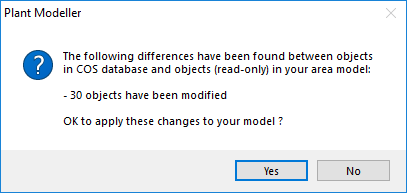
If you selected Ok to continue the operation, you are prompted that the objects in the COS database and in your model have differences. Select Yes to retrieve the last saved version of the objects from the server.
Check in

Check in objects to allow others to check them out.
If a model object has a 3D Space object (Service Space, Cable Way Space) attached to it, the 3D Space is also checked in.
Do the following:
-
Select Model tab > Ownership group > Check in.
-
Select the objects or groups to be checked in, and press Enter.
-
You are prompted when dependent objects could not be included in the set. Select how to proceed:
- Yes – Check in the objects that can be checked in.
- No – Return to object selection.
- Cancel – Cancel the check-in operation.
Alternatively, you can do the following to check in all objects that you have checked out or inserted to the model:
-
Select File > Save.
-
In the Save dialog, select the options Update COS database and Check-in all objects, and then click Save.
If there are objects that you have checked out but have not modified, the check-out of these objects is canceled, and their modification time does not change.
Note: The Check in and Save commands do not check in any documents. Documents must be checked in separately.
Using queries to check objects in or out
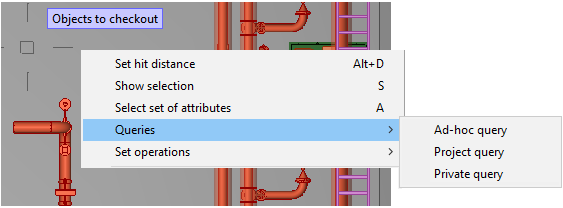
There are several ways to select objects for a check-in or check-out operation, but one very flexible method is to use advanced queries. You can right-click in a view and select Queries from the context menu, and then select the kind of query to use.
See Advanced queries for details.
Request

In distributed projects, the ownership of individual objects and object groups can be in the master COS server or in the local (replica) server of a satellite site. You can check out objects owned by the local COS server, but if ownership is at another site, you must first request ownership to be transferred to the local server. On satellite sites, ownership that is no longer needed can be relinquished to the master.
From master
You can request the ownership of objects to be transferred from the master COS server to the replica COS server of the satellite site where you are working.
Prerequisites
- You are on a satellite site.
- Update Settings of the replica server define the public address that the master server can connect to, and both servers are online.
- The objects whose ownership is to be requested are not checked out to a user working in the master COS server. Otherwise, you must ask that user to check in the objects first.
Do the following:
- Select Model tab > Ownership group > Request > From master.
- Select the objects whose ownership is to be requested, and press Enter.
-
You are prompted when the selected objects are not inside the area where you are allowed to make changes or are not included in the access rule you are using. Select how to proceed:
- Browse – Open the Objects Violating Access Rights view to show the problematic objects.
- Yes – Request the objects you are allowed to modify.
- No – Cancel the request operation.
-
Wait for scheduled online replication to occur, or if offline replication is in use, update the data manually as described below:
- Send an update from the replica site to the master.
- The master COS server sends an update back to the replica.
- Install the update on the replica.
-
You can now check out the objects.
From replica
You can request the ownership of objects to be transferred from a replica COS server to the master COS server.
Prerequisites
- You are on the master site.
- Update Settings of the replica server define the public address that the master server can connect to, and both servers are online.
- The objects whose ownership is to be requested are not checked out to a user working in the replica COS server. Otherwise, you must ask that user to check in the objects first.
- Your user account's user profile is assigned to the security policy Forcibly cancel checked out status and replica ownership for any object.
Do the following:
- Select Model tab > Ownership group > Request > From replica.
- Select the objects whose ownership is to be requested, and press Enter.
-
You are prompted when the selected objects are not inside the area where you are allowed to make changes or are not included in the access rule you are using. Select how to proceed:
- Browse – Open the Objects Violating Access Rights view to show the problematic objects.
- Yes – Request the objects you are allowed to modify.
- No – Cancel the request operation.
-
Wait for scheduled online replication to occur, or if offline replication is in use, update the data manually as described below:
- Send an update from the master to the replica site.
- The replica COS server sends an update back to the master.
- Install the update on the master.
-
You can now check out the objects.
Relinquish

You can use the Relinquish command on a replica server to give the ownership of modified objects back to the master COS server. This also applies to objects you have created at a satellite site, because they are automatically owned by the local COS server.
Prerequisites
-
You are on a satellite site.
-
Update Settings of the replica server define the public address that the master server can connect to, and both servers are online.
-
The objects whose ownership is to be relinquished are not checked out to another user. Otherwise, you must ask that user to check in the objects first.
Do the following:
-
Select Model tab > Ownership group > Relinquish.
-
Select the objects whose ownership is to be released to the master COS server, and press Enter.
-
You are prompted when the selected objects are not inside the area where you are allowed to make changes or are not included in the access rule you are using. Select how to proceed:
- Browse – Open the Objects Violating Access Rights view to show the problematic objects.
- Yes – Relinquish the objects you are allowed to modify.
- No – Cancel the relinquish operation.
-
Wait for scheduled online replication to occur, or if offline replication is in use, update the data manually.
After the updating, the objects are checked in to the master COS server.