Views

On the Home tab, in the Show group, the Views menu includes the following tools.
Views
Select Home tab > Show group > Views > Views to manage your work views. For details, see Manage views.
Rescale
You can change the display scale of a work view.
Prerequisites
-
An open wireframe or shaded view.
Do the following:
-
On the Home tab, select Views > Rescale.
-
Select the view from the list.
-
Select the display mode of the view.
-
Fixed scale – You are prompted to type the scaling value and pick a center point for the scaling.
-
View mapped to screen – The program computes the scale so that the whole view fits onto the screen.
-
Zoom window
You can zoom in to a specified area within the view window.
Prerequisites
-
An open wireframe or shaded view.
Do the following:
-
Select Home tab > Show group > Views > Zoom window.
-
In the Select View dialog, click the name of the target view.
-
Pick the first and second corner point of the area to zoom in to.
Fit view limits
You can set the display scale of a work view so that the whole model fits into the view window.
Prerequisites
-
An open wireframe or shaded view.
Do the following:
-
Select Home tab > Show group > Views > Fit view limits.
-
In the Select View dialog, click the name of the target view.
Print hardcopy
You can print a hardcopy of the visible area of a wireframe view.
Prerequisites
-
An open wireframe view.
Do the following:
-
Set the view window so that it shows the area you want to print.
-
Select Home tab > Show group > Views > Print hardcopy.
-
In the Select View dialog, click the name of the target view.
-
In the Print Setup dialog, specify the print options, and click OK.
-
In the Plot dialog, specify the plot options, and click OK.
Export
You can export the visible area of a wireframe view into a file.
Prerequisites
-
An open wireframe view.
Do the following:
-
Select Home tab > Show group > Views > Export.
-
In the Select views for export dialog, select the views to export, and click OK.
-
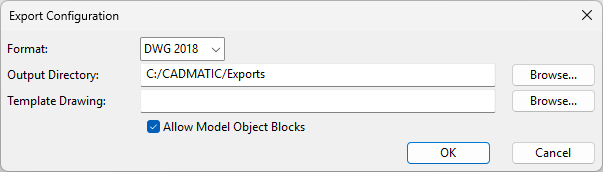
In the Export Configuration dialog, define the export settings, and click OK.

2D Control
Select Home tab > Show group > Views > 2D Control to access the 2D Control commands.
Walkaround
Select Home tab > Show group > Views > Walkaround to define Walkaround settings for the active work view.
Inspection view
Select Home tab > Show group > Views > Inspection view to open the active work view in the Inspection View window.