Save
Tools > Hull Library > Save

Save construction as a model into the Hull Library.
First select the construction parts that you want to include into the Hull Library model. See Selecting parts.
After you have selected the parts, the Save Hull Library model dialog opens.
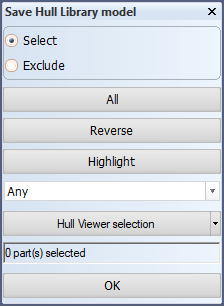
In the graphical window, select the construction items that you want to include in the model.
- Use options Select and Exclude to either include or exclude items from the selection when you indicate them in the graphical window.
- All selects all the construction items in the drawing in one go.
- Reverse deselects the currently selected construction items, and selects the currently unselected construction items.
- Highlight highlights the currently selected items in the graphical window.
You can use the drop-down menu to limit your selection to a specific construction items. Only items of the selected type can be selected.
You can also select the construction items in Hull Viewer or by logistical selection.
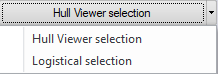
- For Hull Viewer selection, select Hull Viewer selection. Hull Viewer opens. See Hull Viewer selection.
- For logistical selection, select Logistical selection. The Select parts for recalculating dialog opens. Select the selection criterion, and then in the next dialog define your selection. See Logistical selection.
Click OK to apply all provided input.
Next, the Cadmatic Hull Library browser opens:
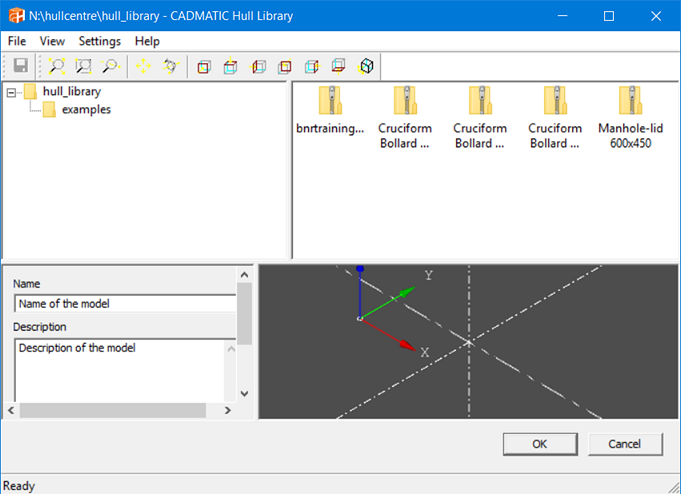
The folder present in the Hull Library are shown in a tree structure on the left.
The name and description of the selected model selected are shown in the folder content area on the right.
Browse to the folder where you want to store the model, enter a name and a description, and click OK.
See also The CADMATIC Hull Library browser.