Selection
Selecting parts can be done by mouse or by using the following keyboard shortcuts:
- Select a part with the left mouse button. You can add parts to the selection by keeping the Shift key down while selecting parts. Parts can be removed from the selection by selecting already selected parts.
- Ctrl + A selects all parts.
- Ctrl + Shift + A deselects all parts
- Ctrl + R reverses the selection. All unselected parts become selected and vice versa.
Selection level
The selection level drop-down menu in the toolbar can be used to select multiple parts with just one mouse click.
The drop-down menu lists the breakdown levels. If a level is selected here, selecting one part using the left mouse button will select all parts that have the same work breakdown information as the originally selected part.
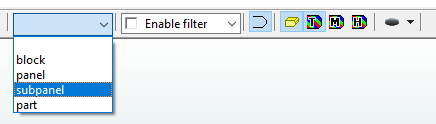
For example, when you select a stiffener from a panel with the selection level set to panel, the entire panel to which the selected stiffener belongs will be added to the selection.
Selection filter
The selection filter drop-down menu in the toolbar can be used to select and filter out multiple parts of the construction. The selection filter does not change the selection directly, but it prevents both the selection and deselection of the construction types which are not selected in the filter.
The drop-down menu lists the filtering types. If a part is selected here, selecting other types of parts in Hull Viewer is not possible.
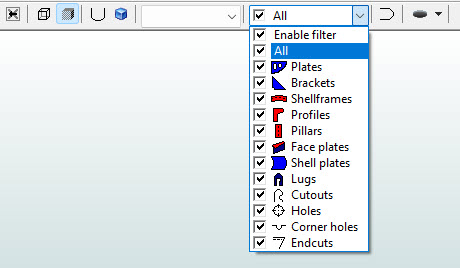
For example, when you select Plates from the filter list and select a plate, it is selected and nothing else than plates can be selected. If the Plates filter is then deselected and Profiles selected, only profiles can be selected, but the plate still remains selected until the Plates filter is selected again.
Selection display
The colour of the selected parts is changed to the Selection colour (see Colors). The number of selected parts is displayed in the status bar.
Several actions can be performed on the selected parts, as follows:
-
Using the context menu – Right-click somewhere on the background when parts have been selected. The following menu opens:
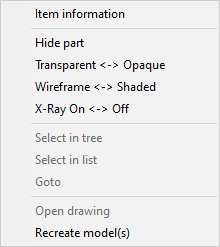
Select one of the available options to change the display state of all the selected parts. The three options below Hide part switch between two display states. For instance, by selecting Transparent <-> Opaque all the transparent parts become opaque and vice versa.
-
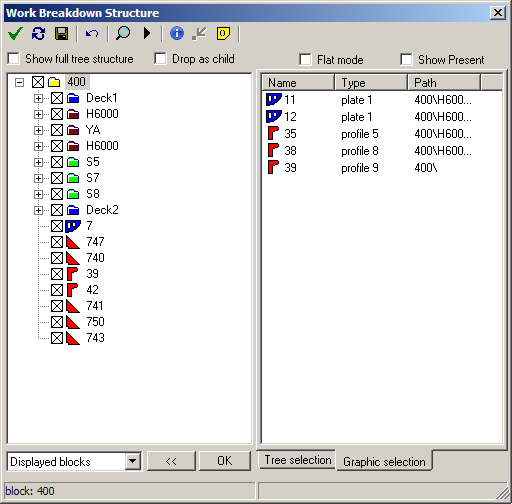
The Work Breakdown Structure dialog shows an overview of the selected parts when Graphic selection below the list is clicked:
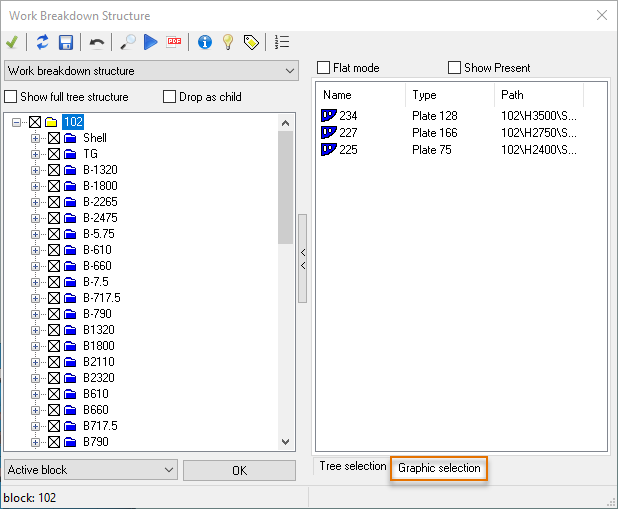
You can drag the items in the list into the tree. This changes their logistical information. For more information, see Editing parts.
-
To remove a selection from Hull Viewer, press the Delete key. This has the same effect as clearing a part's check box in the Work Breakdown Structure tree. The parts are not deleted from the Hull Viewer construction database.
-
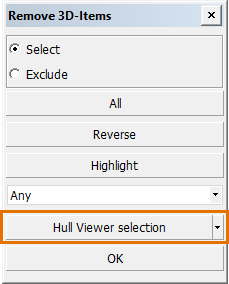
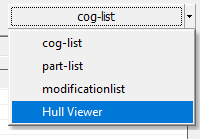
An action can be performed in CADMATIC Hull to parts selected in Hull Viewer. This is either done by clicking the Hull Viewer selection button. Parts selected in Hull Viewer can also be used as logistical selection by selecting the Hull Viewer selection criteria in the logistical selection dialog.