Active
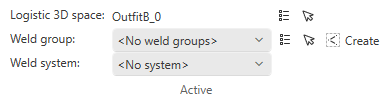
On the Weld tab, the Active group lets you select the logistics 3D space, weld group, and system of the welds to manage.
Logistic 3D space
Use one of the following methods to select the logistics 3D space where you want to manage welds.
-
 – Select the logistics 3D space from a containment browser that shows a hierarchical tree of all logistics 3D spaces.
 -
 – Select the logistics 3D space by picking a model object that belongs to the required logistics 3D space.
Selecting a logistics 3D space updates the other selection fields with applicable items.
Weld group
Use one of the following methods to select the weld Group that you want to manage.
-
 – Select the weld group from the drop-down list. Selecting <Last Weld Check Results> displays the most recent weld check results in the weld List, if a weld check has been performed.
 -
– Select the weld group from a containment browser.
-
– Select the weld group by picking a weld from the model.
If there is no suitable weld group in the currently selected logistics 3D space, click the  button to create one.
After selecting a weld group, you can manage the welds that already exist in that group and use the Insert commands to add new welds to it.
Weld system
This field lists systems that have the Allow welds option enabled. When you create new welds, they use the system currently selected in this field.