Content categories

The Content Categories feature enables you to control which COS user profiles are allowed to access model objects, documents, and work requests assigned to a given content category. Within this mechanism, users with access to certain categories cannot view data in other categories, while data outside these restrictions remains available to all users. This feature can help protect sensitive data, for example, by preventing subcontractors from seeing each other's designs in a shared model area.
First, the project administrator must enable the Content Categories feature and create the required categories in COS, as described in Configuration.
Then, in the 3D model, content categories can be assigned to special groups of type 'Content category group', and to systems and lines. Model objects can inherit content categories from all of them, meaning they can belong to more than one content category at a time. Documents inherit content categories from objects displayed in drawing views, or from objects that are members of a document group. Work requests can be set to adopt content categories from linked objects—this inheritance requires user action.
When the model area contains entities restricted by content categories, the following rules apply:
-
Content that is not assigned to a content category is available to all users (except where other restrictions apply).
-
Content that is assigned to one or more content categories is available to users who have all those categories selected in their user profile.
-
Content category filtering affects users with no content categories selected in their user profile:
-
if filtering is disabled, content assigned to content categories is available;
-
if filtering is enabled, content assigned to content categories is not available.
-
Inactivity filter can be used to show or hide content-categorized objects the user is permitted to access.
Content category groups can be used as a hierarchy in the Model Tree pane.
Queries can find objects assigned to content categories.
Configuration
The project administrator can enable the use of content categories by completing the following steps.
Prerequisites
-
Your user profile is included in the User is allowed to manage content categories security policy.
Do the following:
-
In the CADMATIC desktop, use the Manage COS Servers tool to create Content Categories.
-
In the CADMATIC desktop, use the Manage COS Servers tool to specify which User Profiles can access which content categories.
-
In Plant Modeller, use the Groups tools in the model tree (or another suitable method) to create groups of type 'Content category group'. This is the only group type to which content categories can be assigned.
-
In Plant Modeller, use the Manage Content Categories tool to assign content categories to systems, lines, and content category groups.
-
Optionally, enable the 'Content group type' model tree hierarchy in the Model Tree settings.
Note: When content categories are modified, the next application session will prompt the affected users to clear their model area and reload objects.
Manage Content Categories
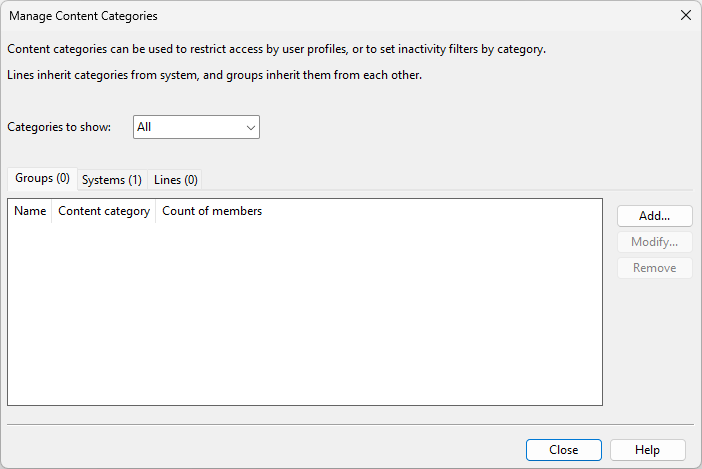
You can use the Manage Content Categories tool to manage content category assignments in the model area.
Prerequisites
-
Your user profile is included in the User is allowed to manage content categories security policy.
-
Check out all entities in the hierarchy you want to edit. For example, to add or remove content categories in a pipeline, you must check out all members of that pipeline.
Do the following:
-
Select Tools tab > Manage group > Content categories. The Manage Content Categories dialog opens, listing the current content category assignments on three tabs.
-
In the Categories to show field, select which content categories to list in the dialog: all categories, or just one of them.
-
Select which content category assignments to manage:
-
Select the Groups tab to assign content categories to content category groups.
-
Select the Systems tab to assign content categories to systems.
-
Select the Lines tab to assign content categories to cable tray lines, duct lines, or pipelines.
-
-
On the selected tab, perform the required actions:
-
To assign content categories to a group, system, or line that does not yet have any, click Add, and use the Content Category Properties dialog to make the assignments.
-
To modify existing content category assignments of a group, system, or line, click Modify, and use the Content Category Properties dialog to make the assignment changes.
-
To remove selected content category assignment, click Remove.
-
-
To exit, click Close.
-
Apply the changes to the model:
-
If any Plant Modeller drawings are linked to objects whose content category assignments were changed, update the documents.
-
If any Work requests are linked to objects whose content category assignments were changed, update the content categories of those work requests.
-
If Inactivity filter is showing or hiding objects based on content categories, open the inactivity filter, review the filter selections, and click OK to reapply the filters based on the new assignments.
-

Content Category Properties
In the Manage Content Categories dialog, adding or modifying a content category assignment opens the Content Category Properties dialog, where you can assign content categories defined in COS to content category groups, systems, and lines. Model objects assigned to those groups, systems, and lines inherit these content categories and become restricted by them.

Do the following:
-
Select the target content category group, system, or line.
-
Add the required content categories to the Selected categories pane, and click OK.
-
The Related Documents dialog opens, informing you that documents may be affected by your changes. For reference, it lists document groups whose member objects are affected, but it cannot tell which documents include drawing views displaying objects whose content categories were changed. You must update both types of documents outside this tool to apply the content category changes to them. Click OK to return to the Manage Content Categories dialog and display the current content category assignments.