File menu
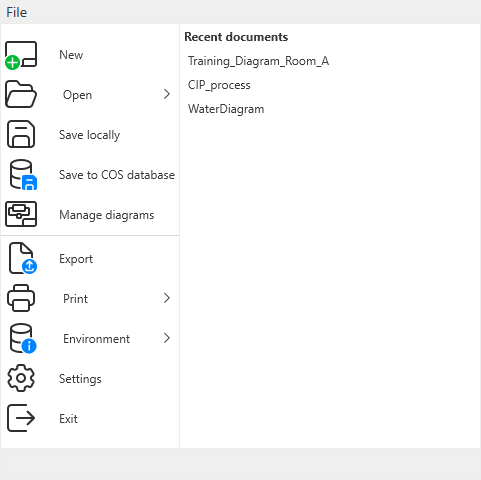
The File menu of P&ID includes the following commands.
|
|
Creates a new diagram. See New. |
|
|
|
Allows opening a diagram in either browse or edit mode. The browse mode does not check out the document from COS. |
|
|
|
Saves the diagram in the local computer. |
|
|
|
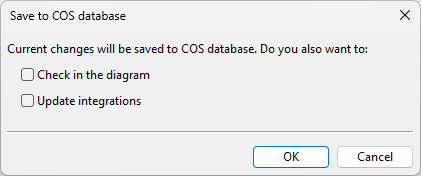
Saves the diagram in COS. You are prompted whether to also check in the diagram and update the diagram data in integrated applications (Plant Modeller, Electrical). |
|
|
|
Opens the Manage Diagrams dialog where you can create, edit, and delete diagram documents. |
|
|
|
Opens the Export 2D Drawing dialog for exporting the active diagram into a file. See Export. |
|
|
|
Allows printing the active diagram or a selected region from the diagram. |
|
|
|
Opens a menu with the following options:
|
|
|
|
Opens the Options dialog where users can manage personal settings and administrators can manage shared project settings. |
|
|
|
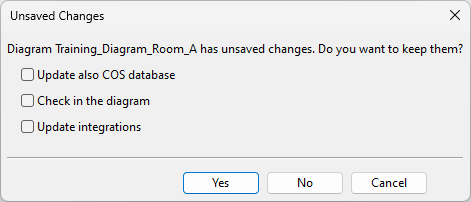
Closes the P&ID application. If a diagram has unsaved changes, you are prompted to select how to proceed.
|