Object

On the Home tab, the Object group includes the following tools.
Insert

You can insert diagram objects into the active diagram.
Do the following:
-
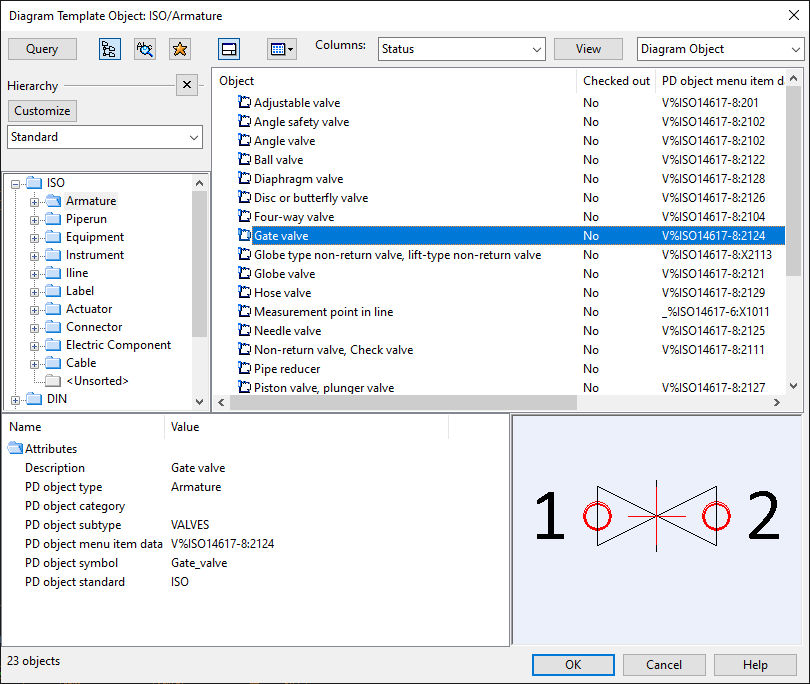
Select Home tab > Object group > Insert. The Diagram Template Object dialog opens, displaying the available object templates.
-
Select the required object template from the list, and click OK.
-
Position the object in the active diagram, and click to confirm its location.
-
If the object uses a label, position the label in the diagram, and click to confirm its location.
-
You can continue inserting objects of the same type, or press Esc to exit the tool. You can also insert diagram objects via the Template Pane.
Tip: The template you used is now available for quick access in the Recently used items menu of the Insert button.
Change

You can change the diagram object template used by objects in the active diagram, excluding actuators and labels.
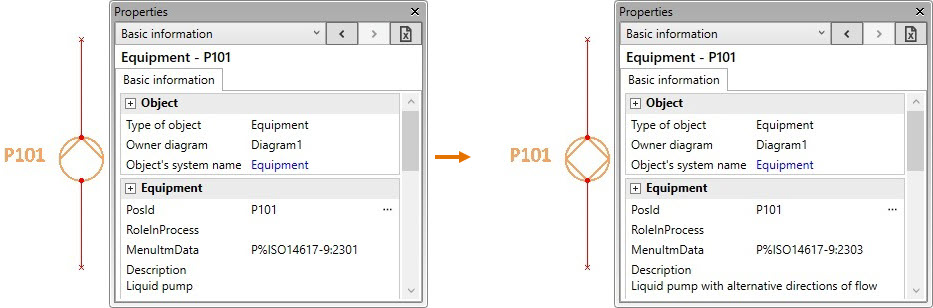
The old and new template must be for the same object type, but subtype can be different. However, different subtype can cause data loss, if data fields (sub-table columns) do not match.
Note: This command changes the graphical object and the value of the 'MenuItmData' database field, and regenerates any fields that depend on 'MenuItmData'; other fields are not changed. If this is not the case, ask your project administrator to check the 'set_defaults' script.
Do the following:
-
Select Home tab > Object group > Change. The Diagram Template Object dialog opens, displaying the available diagram object templates.
-
Select the new object template from the list, and click OK.
-
Select the diagram objects whose template you want to change, and press Enter to confirm the change.
-
If you are prompted that sub-tables differ, decide whether to accept the change.
 Show/hide example
If you change the subtype of an instrument, the following happens:
-
A data field is kept if the new template contains a sub-table column with the same column name, data type, and quantity type.
-
Numerical columns retain values that are within the min–max range in the new template, other values are reset to 0.
-
String columns retain values whose length does not exceed the max length in the new template, other values are cleared.
-
-
A data field is removed if the new template does not have a matching sub-table column.
-
-
To continue changing object templates, press Enter to restart the command. You can also change the object template of a single diagram object by selecting Change from the object's context menu.
Tip: The template you used is now available for quick access in the Recently used items menu of the Change button.
Update

The Update menu includes the following commands.
Update instruments | Update flexible objects | Refresh cuts
Update instruments
Select Home tab > Object group > Update > Update instruments to update all instruments in the active diagram.
Tip: The project administrator can automate this action, as described in Automatic Update.
Update flexible objects
Select Home tab > Object group > Update > Update flexible objects to update all flexible objects in the active diagram.
Tip: The project administrator can automate this action, as described in Automatic Update.
Refresh cuts
Select Home tab > Object group > Update > Refresh cuts to update the visualization of intersecting connection lines according to diagram-specific Cut parameters.