Getting started
Startup
During startup eGo checks for a working license. If a working license is not found, a dialog opens asking for a license code, an activation key, or the address of eShare server. Enter a license code, an activation key, or the server address, and click Yes to continue.
During startup eGo contacts eShare server. If the current eGo version is not compatible with the eShare version, a dialog opens asking to update eGo. Click Yes to update. eGo will download the latest version, shut down, install the new version, and restart. If you click No, eGo will start but it may not be fully compatible with eShare.
The version update check can be disabled in the settings. See Global settings.
User interface
Opening CADMATIC eGo displays the Models view where you can install 3D models, access the installed 3D models, and define global settings. 3D models installed from CADMATIC eShare can also be synchronized and uninstalled in this view.
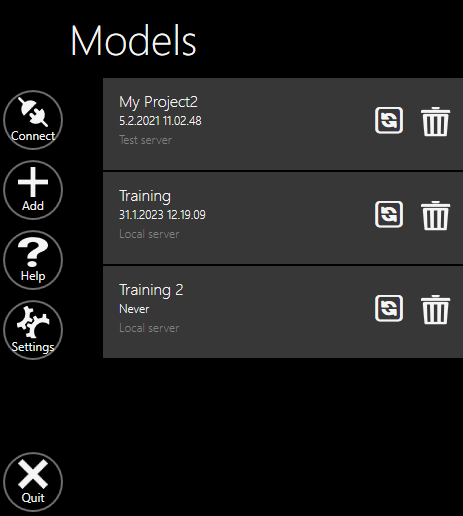
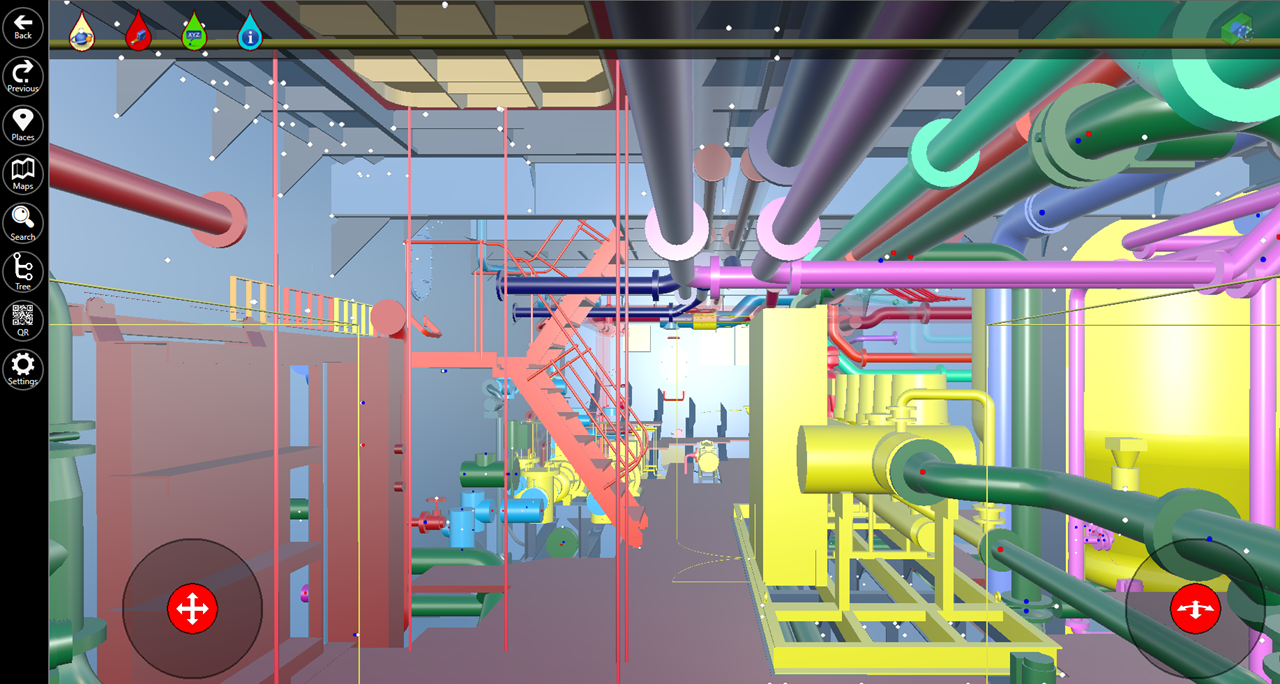
Selecting a 3D model from this view displays the main CADMATIC eGo window which contains the following:
-
Main menu (left)
-
Toolbar (top)
-
Properties pane (right)
-
3D view (center)
In the 3D viewer you can navigate and select items by using standard touch screen functions (tapping, gestures) or an integrated or external keyboard or mouse. As eGo is intended for touch screen devices, some elements of the user interface can only be accessed via the touch screen.
Main toolbar buttons
These buttons are displayed in the main toolbar on the left. Some of them are only available in a specific view, such as the Models view or the 3D view.
 Show/hide details
|
Button |
Description |
|---|---|
|
|
Connect to eShare Allows connecting eGo to eShare. |
|
|
Open Model Opens a dialog for selecting a 3D model file (.ebm) from the disk. See Model management. |
|
|
Help Opens the help. See eGo documentation. |
|
|
Global Settings Opens the Global Settings view. See Global settings. |
|
|
Back Goes back to the previous eGo view. |
|
|
Previous Goes back to the previously visited location in the 3D view. |
|
|
Places Opens the Places view which allows jumping to a pre-defined location in the 3D model. See Places. |
|
|
Maps Opens the map view that allows quickly navigating to a specific place in the 3D model. See Maps. Button is visible only if the 3D model contains 3D spaces. |
|
|
Markups Opens the Markups view which lists the Markups in the project. In global settings you can specify whether this view should list all Markups or only those that you have either created or modified. See Markups. Button is visible only if the 3D model has been downloaded from eShare. |
|
|
eShare Documents Opens the eShare Documents view which lists the project documents that are available in the eShare server. See eShare documents. Button is visible only if the 3D model has been downloaded from eShare. |
|
|
Search Allows searching for objects and object groups. See Search. |
|
|
Model Tree Lists the objects of the 3D model as a hierarchical tree. See Model tree. |
|
|
Read QR Code Allows using the device camera to scan a QR code that opens a specific object in the 3D view. See Read QR code. |
|
|
Model Settings Opens the Model Settings view. See Model settings. |
|
|
Quit Closes the eGo application. |


Visual style
At the top of the 3D view is the Visual Style menu. When the model contains several visual styles, you can switch to the required visual style by selecting the style from this menu. The color legend is displayed at the bottom of the 3D view. You can hide or show the legend using the arrow on the right side of the legend.
Droplet tools
In the 3D view, the toolbar at the top displays drop-shaped icons. You can drag these droplets to the 3D view to perform a given function, as described below.
These functions require a touchscreen.
Show/hide details
|
Tool |
Description |
|---|---|
|
|
Orbit Point To specify a point around which the 3D view orbits, instead of orbiting around the user's viewing point. (Not displayed in the Markups view.) |
|
|
Measurement To add a measurement, first drag one measure droplet to the starting point, and then drag another measure droplet to the end point. The measuring tool can snap for example to connection points and pipe centerlines. |
|
|
Coordinate Label To add a coordinate label, drag the label droplet to the required position. |
|
|
Information Label To add an information label, drag the label droplet to the required position. |


The droplets are not saved in the model—they disappear if you for example reload the model or restart the application. You can also delete them manually:
- You can drag an individual droplet back to the toolbar.

- You can delete all droplets by selecting
 .
.
Clip box
In the 3D view, the toolbar at the top contains clip box buttons that allow making the visible area smaller. This can help you to navigate more easily in a very large or very densely populated model.
-
Select
 to enable the clip box. Then, you can move any of the sides of the box by using a finger or by holding down the right mouse button and dragging.
 -
Select
 to toggle the displaying of the clip box boundaries.
 -
Select
 to disable the clip box. The full model is displayed again.
For more details, see Clip box.
Properties pane
In the 3D view, selecting an object displays the object properties in a separate pane on the right side of the screen. The properties are shown in the same order as in eShare.
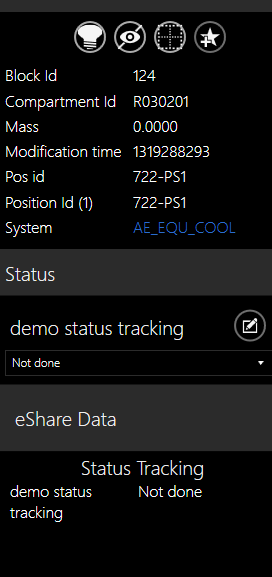
In this pane, you can do the following:
-
Select
 to toggle the visibility of attributes that are set invisible in eShare. This option is available only if there are hidden attributes in the project, and the setting affects only the attributes' visibility in eGo.
 -
Select
 to highlight the object.
 -
Select
 to hide the object.
 -
Select
 to make the object transparent.
 -
Select
 to add a Smart Point.
 -
Change the value of drop-down menu fields if you have sufficient permissions.
-
Add new status values if the system administrator has enabled this and you have sufficient permissions.
If eShare has a value template configured for status values, eGo will suggest status values.
-
See the nodes related to the object.
-
See the Smart Points linked to the object, including data of Smart Points with an external ID.
-
See the markup details with linked object.
-
See the eShare data values of the object, including strings, dates, hyperlinks and links to documents.
-
See graph data from eShare data sources.
-
If coordinate systems are used, the coordinate system of the object is shown.
Note: In MultiSelect mode, if selected set of objects is partially visible, highlighted, or transparent, the corresponding buttons are dimmed.
To clear the properties pane and undo object selection, press Esc key.