Primitive and shape commands
You can modify a primitive or 3D shape by selecting Component Modeller tab > Edit group > Primitive and then the object to modify. Some primitives only support rotation around a given axis, while some can be rotated around a specified point. Primitives that have two definition points maintain the association between those points invariant. For example, if you have parameterized the distance between the end points of a cylinder, then this distance remains intact even though both definition points have new positions when the cylinder is moved.
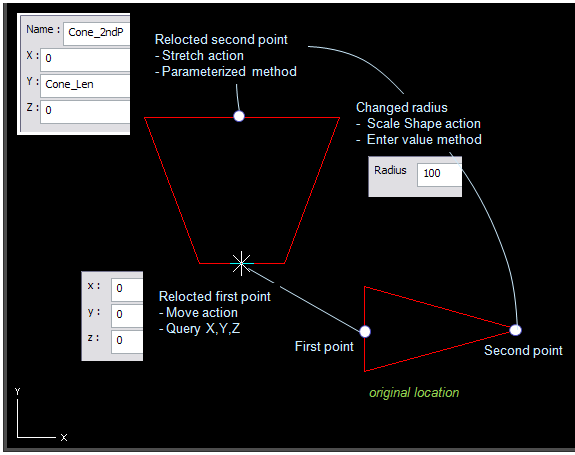
The picture below shows how a horizontal cone is modified by moving, stretching, and rescaling the primitive.
-
The first point of the cone is moved to the origin (0,0,0).
-
The second point is stretched to the parameterized point 'Cone_2ndP'.
-
The radius at the second point is changed using the Scale Shape command.
You can use the following commands to modify the active primitive. Some primitives have special commands that are described in the context of the given primitive.
Move (K)

Supported primitives: all.
Supported shapes: all.
Select Move to move the primitive to a different location without changing the primitive's orientation or dimensions.
Note: In a Box or Curved sweep, or in a 3D shape, this command is only available when the origin point is selected.
Lengthen (L)

Supported primitives: Box, Beam, Plate, Sweep, Cylinder, Cone, Toroid, Flange, Dish.
Select a definition point and then Lengthen to adjust the primitive's length, but not its orientation, by moving the specified point in a fixed direction.
Stretch (I)

Supported primitives: Beam, Sweep, Cylinder, Cone, Eccentric cone, Toroid, Flange.
Select a definition point and then Stretch to adjust the primitive's length and orientation by moving the specified point in any direction.
Rotate (J)

Supported primitives: Beam, Plate, Sweep, Cylinder, Cone, Eccentric cone, Toroid, Flange, Dish, Curved sweep.
Supported shapes: all.
Select a definition point and then Rotate to rotate the primitive around the specified point.
Axis Rotate (Shift+J)

Supported primitives: Box, Beam, Plate, Sweep, Toroid, Curved sweep.
Supported shapes: all.
Select Axis Rotate to rotate the primitive around the axis passing through the specified point.
Scale Shape (O)

Supported primitives: Cylinder, Cone, Eccentric cone, Toroid, Flange, Sphere, Dish.
Select a definition point and then Scale Shape to adjust the primitive by scaling its dimensions.
In a cylinder, flange, and toroid, it does not matter which point you select, as there is only one radius.
In a dish, you can adjust the radius of the circle at the cut end.
Edit Params (Shift+O)

Supported shapes: all.
Select a definition point and then Edit Params to modify the parameters of a 3D shape.
Edit Shape (Shift+O)

Supported primitives: Beam, Plate, Sweep.
Select Edit Shape to modify the shape of the primitive. See Editing a section.
Edit Dims (Shift+O)

Supported primitives: Box.
Select Edit Dims to edit the dimension parameters of the primitive.
Edit Curve (Shift+O)

Supported primitives: Surface of revolution, Curved sweep.
Select Edit Curve to edit the curve parameters of the primitive.
Edit Settings (O)

Supported primitives: Surface of revolution, Curved sweep.
Select Edit Settings to edit the parameters of the primitive.
Done (Enter)
Select Done to accept the new or modified primitive.
Cancel (Esc)
Select Cancel to cancel creating or modifying the primitive.